How to Fix Onimusha Way of the Sword Low FPS and Micro Stuttering on PC
There is a lot to love about Onimusha: Way of the Sword. After waiting two decades for a proper mainline return, getting back into the shoes of a demon-slaying warrior in a corrupted Edo-period Kyoto should feel special. And when the combat clicks, it absolutely does. Musashi’s swordplay has that wonderfully aggressive rhythm where a clean parry or perfectly timed attack can make you feel like an absolute monster.
Then the PC decides to throw a tiny wrench into the works.
Low FPS is one thing. You can lower settings, enable an upscaler, and usually claw your way back to a respectable frame rate. Micro-stuttering and bad frame pacing are much more annoying. A game can report 80 or 100 FPS in the corner of your screen and still feel strangely jerky when you turn the camera, enter a new area, or trigger a flashy combat ability.
That is the problem several PC players have been running into with Onimusha: Way of the Sword. Even powerful systems can experience traversal hitching, sudden 1% low drops, shader-related pauses, and inconsistent frame delivery. If your average FPS looks great but the game still feels like it is occasionally dragging its feet, you are dealing with a frame-pacing problem rather than simply a lack of GPU horsepower.
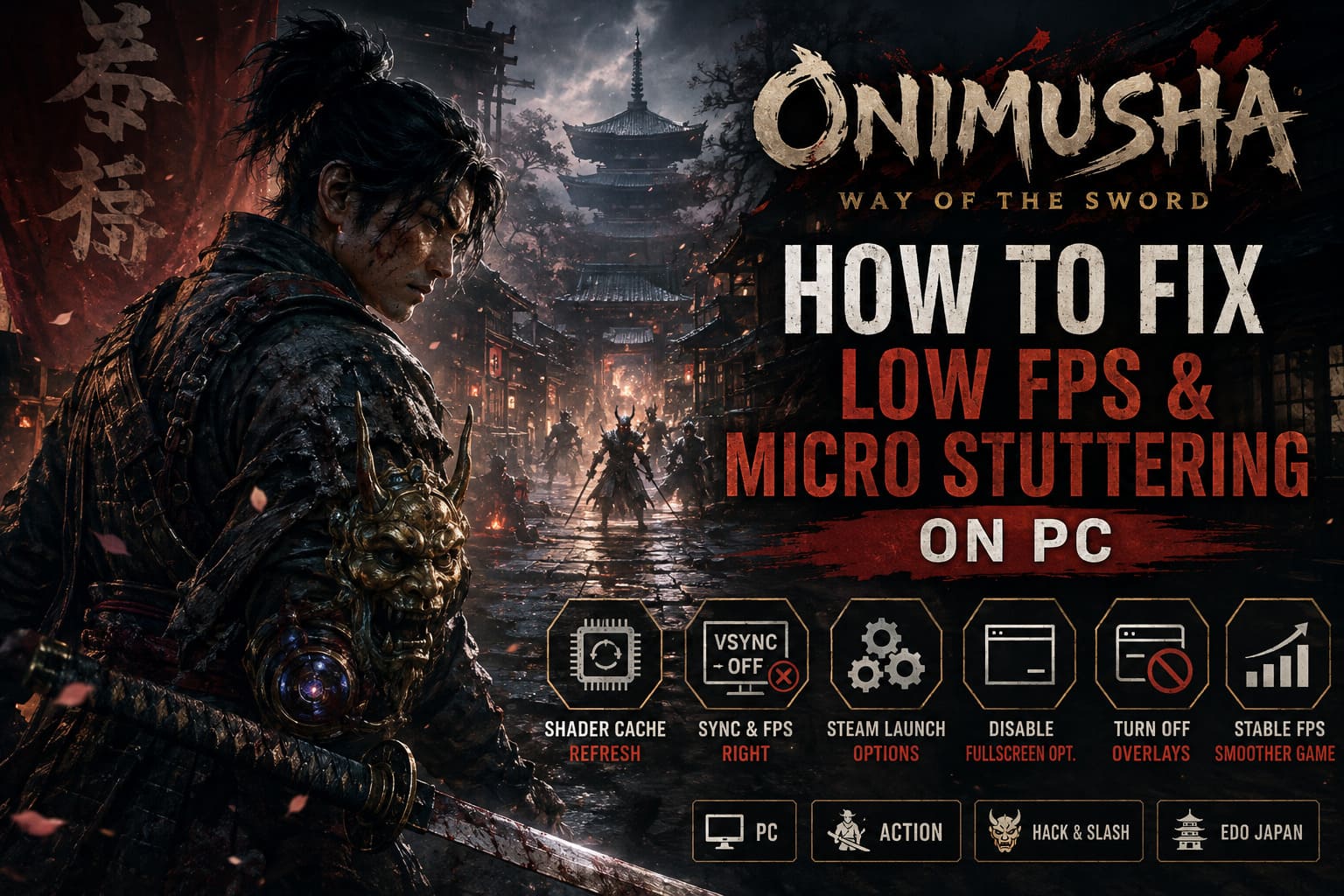
The good news is that there are several things worth trying before you start blaming your graphics card. I have focused this guide on fixes that target the actual sources of PC stutter: shader caching, synchronization, background overlays, CPU scheduling, Windows presentation behavior, and a handful of expensive graphics settings.
Why Does Onimusha: Way of the Sword Stutter on PC?
Before changing twenty settings at random, it helps to understand what you are actually trying to fix. Modern PC games are complicated beasts, and Onimusha’s combination of detailed environments, real-time effects, asset streaming, and DirectX 12 can expose weaknesses that are invisible in a simple benchmark.
Shader Compilation Stutter
Shader compilation is one of the first suspects when a new game stutters during its first encounters with particular effects or locations. As the engine encounters new visual effects, materials, lighting situations, or combat abilities, required shaders may need to be prepared and cached.
This can produce the classic PC gaming experience: the game runs beautifully one second, you enter a new arena, unleash an effect-heavy Oni ability, and suddenly everything freezes for a fraction of a second. Then it goes back to normal.
That tiny hitch can be incredibly noticeable during sword combat because Onimusha relies so heavily on timing. A stutter in a menu is nothing. A stutter immediately before a parry is another story.
Traversal and Asset Streaming Hitching
Onimusha is also constantly moving assets in and out of memory as you travel through Kyoto. New geometry, textures, effects, and environmental data have to arrive while old resources are discarded.
That is where traversal stutter comes in. You can sometimes notice a brief hitch while crossing into a different section of the map, entering an interior, or triggering an autosave. If the drive, CPU, memory subsystem, or engine streaming behavior becomes a bottleneck, your average FPS may remain perfectly respectable while frame times suddenly spike.
VSync and Frame-Pacing Problems
Another problem is synchronization. Your monitor may be running at 144Hz, 165Hz, 240Hz, or another refresh rate while the game, Windows presentation system, VSync, and VRR technology are all trying to coordinate frame delivery.
When those systems disagree, you can get tearing, uneven frame delivery, or the dreaded feeling that 60 FPS somehow looks worse than it should.
Overlays and Background Software
And then there are overlays. Steam, Discord, NVIDIA’s overlay, recording utilities, monitoring programs, RGB software, and other background applications can all hook into games.
Most of the time they behave themselves. Sometimes they absolutely do not.
If you are chasing a stubborn micro-stutter, temporarily shutting down unnecessary overlays is one of the easiest troubleshooting steps you can perform. It costs nothing, takes a couple of minutes, and can immediately tell you whether another application is interfering with the game.
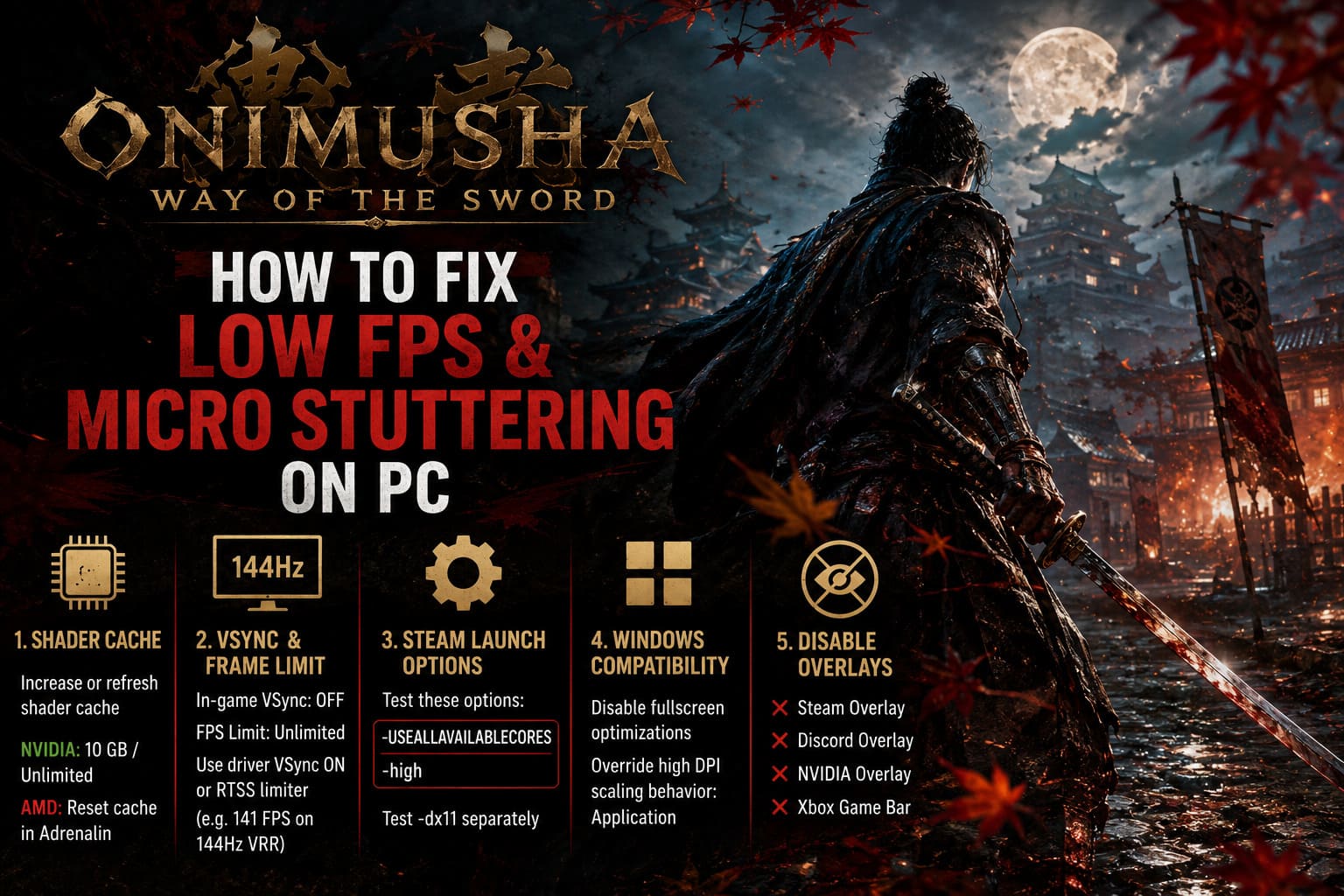
Fix 1: Increase or Refresh Your Shader Cache
If shader compilation is responsible for some of your stuttering, giving your GPU driver more room to retain compiled shaders can help prevent unnecessary rebuilding. This is particularly worth testing if you repeatedly encounter the same hitch after returning to a location or using a particular effect.
NVIDIA GPUs
- Close Onimusha: Way of the Sword completely.
- Open the NVIDIA Control Panel or NVIDIA App.
- Go to Manage 3D Settings.
- Find Shader Cache Size.
- Set it to a larger available value, such as 10 GB, or Unlimited where available.
- Apply the changes and restart your PC.
Do not panic if the first launch afterward is not magically perfect. A fresh shader cache can mean that the game still needs to rebuild data during early gameplay. Give it some time before judging the result.
AMD GPUs
AMD’s software does not always expose exactly the same shader-cache controls as NVIDIA. In AMD Software: Adrenalin Edition, open the graphics settings and look for the shader cache reset option under the advanced graphics controls.
Resetting the cache can be useful when an existing cache has become corrupted or is producing strange behavior after a driver or game update. After resetting it, launch the game and allow the cache to rebuild naturally.
My advice: don’t start throwing random registry tweaks at the problem unless you genuinely know what you are changing. A clean cache reset is considerably safer than blindly modifying Windows registry entries you found in a forum comment from 2019.
Fix 2: Clean Up VSync and Frame Limiting
This is one of the first things I test whenever a game has good average FPS but feels uneven. The goal is simple: avoid having multiple systems fight over frame timing.
- Open Onimusha’s graphics settings.
- Turn VSync OFF in the game.
- Set the game’s FPS limit to Unlimited or uncapped.
- Apply the settings and exit the game.
- Open your GPU driver’s control panel.
- Add the game’s executable to its program-specific settings.
- Set driver-level VSync to ON if you are testing this configuration.
For players using G-Sync or FreeSync, an external limiter can also be extremely useful. RivaTuner Statistics Server (RTSS) is a popular choice because its frame limiter is exceptionally consistent.
For example, on a 144Hz VRR display, you could test a cap around 141 FPS rather than allowing the game to slam into the panel’s maximum refresh rate. The idea is to keep the frame rate inside the VRR window and give the display a little breathing room.
There is no magical number that works for every monitor, though. If your system cannot maintain 141 FPS, don’t force it. A stable 90 or 100 FPS can feel considerably better than a wildly fluctuating 70-144 FPS.
Fix 3: Experiment With Steam Launch Options
CPU scheduling can become complicated on modern processors, especially systems with hybrid architectures or a large number of logical threads. Some players also experiment with Unreal Engine launch parameters to change how the game interacts with available CPU resources.
In Steam:
- Open your Steam Library.
- Right-click Onimusha: Way of the Sword.
- Select Properties.
- Stay on the General tab.
- Enter your chosen launch options in the Launch Options field.
The configuration commonly tested by PC players is:
-USEALLAVAILABLECORES -high
You can also test -dx11 separately if your system experiences unusual DirectX 12 behavior and the game supports that rendering path in your installation. Do not throw every command you find online into the box at once. Test one change at a time so you can actually identify what helped.
The same goes for -high. Giving a process higher priority is not automatically beneficial on every PC. Windows already does a decent job of scheduling modern games, and a high-priority process can sometimes create undesirable behavior elsewhere. Treat these launch options as troubleshooting experiments, not sacred optimization commandments.
Fix 4: Disable Windows Fullscreen Optimizations
Windows has accumulated a lot of presentation-layer behavior over the years. Fullscreen Optimizations are intended to make switching between applications easier, but some games behave better when Windows leaves their presentation behavior alone.
To test this:
- Open the game’s installation folder.
- Locate the main game executable.
- Right-click the
.exefile and select Properties. - Open the Compatibility tab.
- Enable Disable fullscreen optimizations.
- Select Change high DPI settings.
- Enable Override high DPI scaling behavior.
- Set scaling to Application.
- Apply the changes and launch the game again.
This is not guaranteed to improve performance on every system. PC optimization is annoyingly personal. One machine can benefit from a Windows compatibility tweak while another performs better with everything left at default. That is why you should compare frame times before and after rather than relying on a single subjective impression.
Fix 5: Turn Off Unnecessary Overlays
If you are serious about troubleshooting micro-stutters, temporarily remove as many variables as possible. You can always turn your overlays back on afterward.
- Steam Overlay: Disable the Steam overlay from the game’s Properties menu.
- Discord Overlay: Open Discord settings and disable the in-game overlay. Hardware acceleration can also be tested in the Advanced settings.
- NVIDIA Overlay: Disable the NVIDIA App/GeForce Experience in-game overlay and recording features if you are not actively using them.
- Xbox Game Bar: Disable Game Bar and background recording through Windows Gaming settings.
If the stuttering disappears after disabling everything, re-enable the services one at a time. That is much smarter than leaving half your PC’s features disabled forever without knowing which one caused the problem.
Best Onimusha: Way of the Sword Graphics Settings for Stable FPS
Now we get to the part where I would actually start tuning the graphics menu. You do not need to destroy the game’s visuals just to gain a smoother experience. Onimusha’s environments are one of its strongest visual features, so turning everything down to Low should be the last resort.
Ray Tracing
Start with Ray Tracing OFF or Medium. Ray tracing can dramatically increase GPU workload and may also increase the amount of work involved in managing complex scenes. If you are already struggling with frame-time spikes, RT is an obvious setting to test before sacrificing texture quality.
Malice Cloud and Fog Density
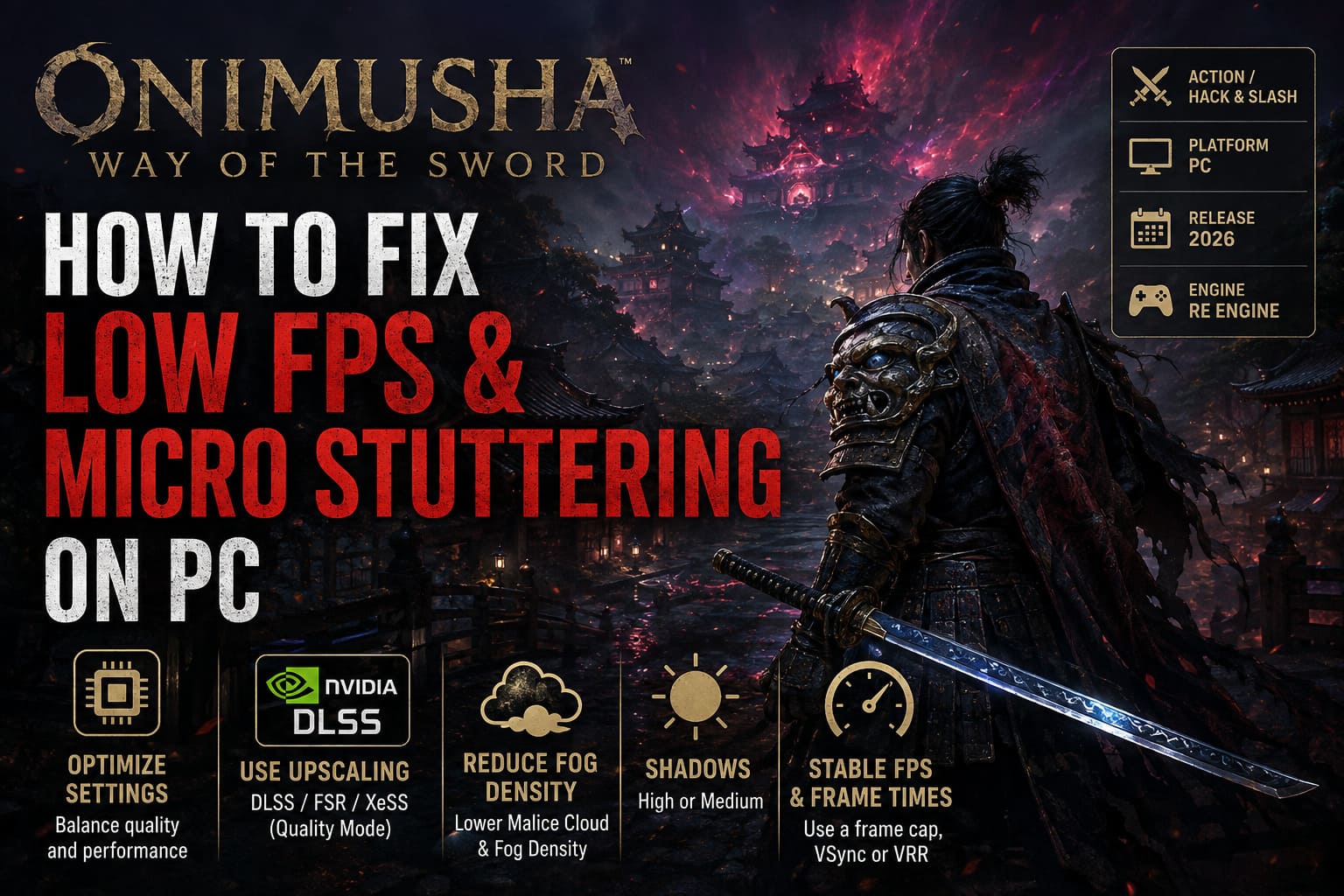
The atmospheric Malice effects are fantastic visually, but volumetric effects can be expensive. If your FPS collapses in particularly foggy or effects-heavy areas, lower Malice Cloud/Fog Density to Medium.
This is one of those settings where you can often recover performance without making the whole game look ugly. I would much rather lower volumetric density slightly than butcher textures, character quality, and environmental detail.
Shadow Quality
Ultra shadows are another easy target. Try High or Medium instead. Shadows can become surprisingly expensive in scenes with numerous lights, characters, and environmental objects.
Upscaling
If your GPU is struggling, use the appropriate upscaling technology available to your hardware. DLSS is the obvious choice on supported NVIDIA GPUs, while AMD and Intel users can look toward FSR or XeSS depending on the game’s available options.
Quality mode is where I would start. It provides a useful performance boost while generally preserving much more image quality than aggressive Performance modes.
Frame Generation
Frame Generation can make the FPS counter look gorgeous, but remember what it is actually doing. Generated frames do not replace the need for a healthy base frame rate.
If your native rendering performance is already comfortably above 60 FPS, Frame Generation can be a great addition. If the underlying frame rate is constantly collapsing below 60, however, generated frames may not solve the fundamental frame-pacing or input-latency problem.
Quick Onimusha PC Performance Troubleshooting Table
| Problem | Likely Cause | What to Try First |
|---|---|---|
| Stutter when entering new areas | Shader compilation or asset streaming | Increase/reset shader cache and allow shaders to rebuild |
| Hitching during abilities | On-demand shader compilation | Refresh shader cache and replay the affected section |
| Uneven frame delivery | VSync or frame limiter conflict | Test driver-level synchronization and RTSS |
| Large FPS drops | CPU/GPU bottleneck or background software | Reduce heavy settings and disable overlays |
| Performance drops in fog | Volumetric rendering load | Lower Malice Cloud/Fog Density |
| Good average FPS but bad feel | Poor 1% lows/frame pacing | Use a stable FPS cap and test VSync/VRR behavior |
Onimusha Way of the Sword Premium Deluxe Edition: Rewards and Content Guide (2026)
One More Thing: Measure Before You Tweak Everything
This is where a lot of PC optimization guides lose me. They throw twenty registry tweaks and twelve launch commands at you and call it a day.
Don’t do that.
Make one change. Test the game. Then make another.
Pay attention to 1% lows, frame-time graphs, GPU utilization, CPU utilization, VRAM usage, and temperatures. If the GPU is sitting at 98-99% utilization while your FPS is low, lowering GPU-heavy settings or using an upscaler makes sense. If GPU usage suddenly drops while one or two CPU cores are getting hammered, you are looking at a different type of bottleneck.
The FPS counter tells you how many frames you are getting. The frame-time graph tells you how consistently those frames are arriving. For a game built around precise parries and fast sword combat, that distinction matters enormously.
Onimusha Way of the Sword PC Requirements: Minimum Specs, SSD & Download Size Revealed
Final Verdict: Getting Onimusha Running Smoothly
Onimusha: Way of the Sword is exactly the kind of game where bad frame pacing is more frustrating than a slightly lower average FPS. The combat is built around timing. When everything is running properly, every slash, dodge, parry, and counter feels connected. When the game throws a sudden hitch into the middle of that rhythm, the entire experience can feel sluggish even if your FPS counter claims everything is fine.
Start with the low-risk fixes: clean up your shader cache, disable unnecessary overlays, test your VSync configuration, and use a sensible frame-rate cap. From there, work through Windows fullscreen behavior and Steam launch options if the problem remains.
On the graphics side, don’t immediately massacre every setting. Target the expensive stuff first. Ray tracing, volumetric Malice effects, shadows, and resolution scaling are much better places to hunt for performance than blindly setting textures and character quality to Low.
And remember: a perfectly stable 90 FPS can feel dramatically better than an unstable 120 FPS that constantly dives into the 60s. Consistency wins. Especially in a game where missing a parry because your PC decided to take a coffee break is considerably less satisfying than missing because you simply mistimed the button.
Capcom can also address some of these problems through future patches, driver updates, and shader improvements. Until then, these settings give PC players a solid starting point for chasing smoother frame times, stronger 1% lows, and a much more responsive Onimusha experience.