Best Echoes of Aincrad Steam Deck Settings: How to Maximize Performance and Fix Low FPS
When I first installed Echoes of Aincrad, I already had realistic expectations. Modern Unreal Engine releases have become increasingly demanding, and handheld PCs often end up paying the price. Still, I hoped Bandai Namco had squeezed in enough optimization to make Valve’s handheld a decent way to experience the game.
After spending several hours experimenting with settings, replaying the opening areas, visiting crowded towns, and deliberately triggering large-scale battles, I can safely say one thing: Echoes of Aincrad is absolutely playable on Steam Deck—but only if you’re willing to tune it properly.
If you launch the game with default settings, don’t be surprised if your first impression is disappointment. Frame rates swing wildly, shader compilation causes noticeable hitching, and larger locations can drag performance down far below what feels comfortable.
The good news is that the situation isn’t hopeless. You won’t magically transform the Steam Deck into a desktop gaming PC, but with the right balance between visual quality and performance, the experience becomes far more enjoyable than the default configuration suggests.
This guide combines my own experience with practical optimization methods that consistently produced the smoothest gameplay during testing.
Why Performance Drops So Hard
The biggest problem isn’t simply “bad optimization.”
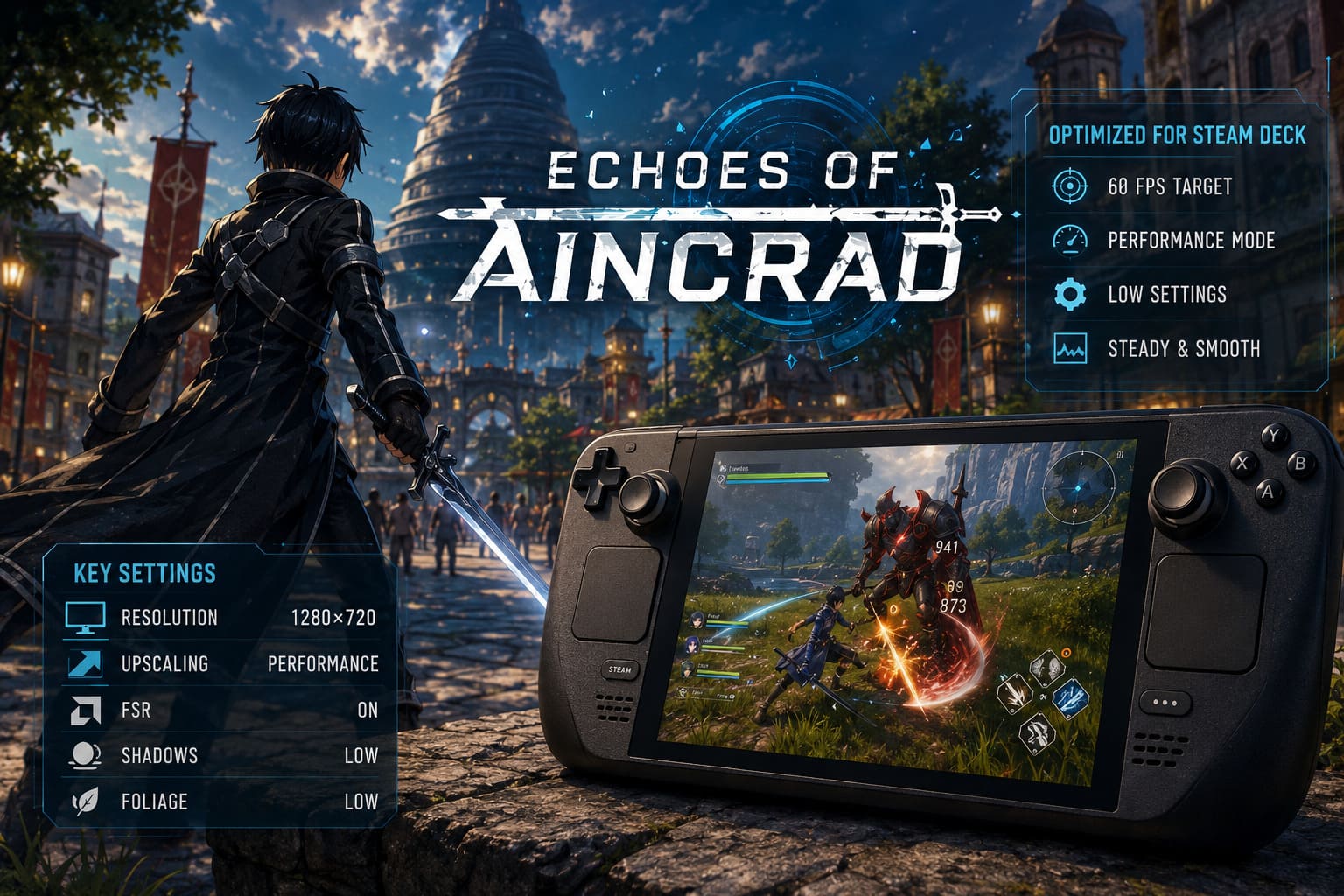
Echoes of Aincrad throws an incredible amount of work at both the CPU and GPU simultaneously.
Large cities contain dozens of animated NPCs. Open fields are packed with dense vegetation, dynamic lighting, weather effects, and long draw distances. Combat frequently fills the screen with sword effects, particles, and physics interactions.
Individually these aren’t unusual for a modern RPG.
Together, they’re exactly the kind of workload that pushes the Steam Deck close to its limits.
Interestingly, indoor locations usually perform much better than outdoor zones. During my testing, dungeons felt relatively smooth, while returning to populated hub areas immediately caused heavier frame pacing issues.
That tells me the CPU is often working just as hard as the graphics processor.
My Recommended Graphics Settings
I tried several different combinations ranging from Medium presets to everything disabled.
After numerous tests, I found that chasing prettier visuals simply wasn’t worth the inconsistent performance.
These settings gave me the best balance.
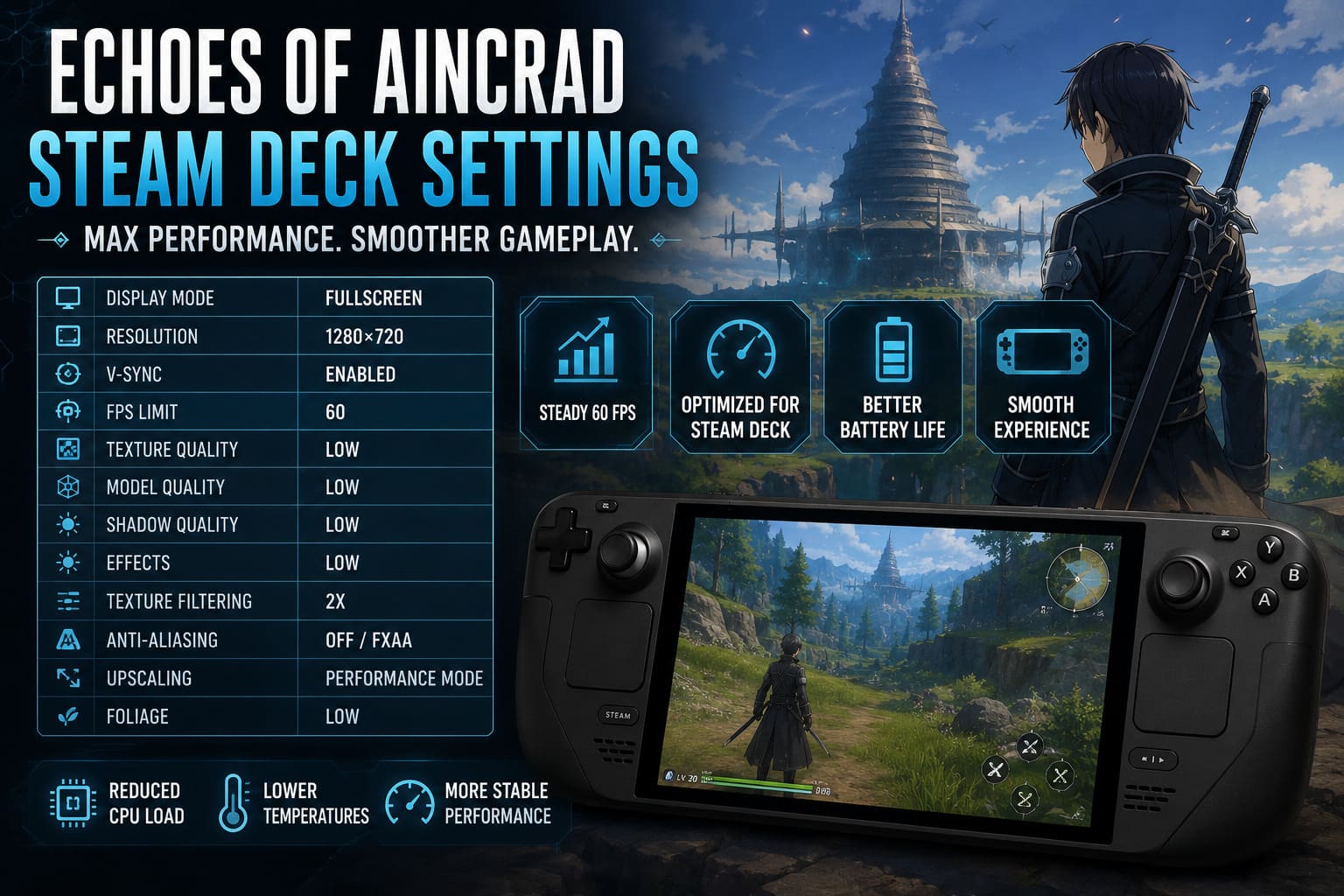
| Setting | Recommended Value |
|---|---|
| Display Mode | Fullscreen |
| Resolution | 1280×720 |
| V-Sync | Enabled |
| FPS Limit | 60 |
| Texture Quality | Low |
| Model Quality | Low |
| Shadow Quality | Low |
| Effects | Low |
| Texture Filtering | 2x |
| Anti-Aliasing | Off or FXAA |
| Upscaling | Performance Mode |
| Foliage | Low |
Lowering shadows alone produced one of the biggest improvements.
Likewise, reducing foliage density dramatically helped in forests and open fields where the Deck’s CPU tends to become overloaded.
Texture quality, surprisingly, had less visual impact than expected. Since the Steam Deck screen is relatively small, Low textures still look respectable while freeing valuable VRAM.
SteamOS Tweaks That Actually Help
Changing in-game settings is only half of the optimization process.
SteamOS itself gives you several useful controls.
The configuration that worked best for me looked like this:
- Refresh Rate: 60 Hz
- Frame Limit: 60 FPS
- TDP: 15W
- Manual GPU Clock: 1400–1500 MHz
- Proton: Proton Experimental
The manual GPU clock deserves special mention.
Normally SteamOS constantly adjusts GPU frequency depending on workload.
That sounds great in theory, but in Echoes of Aincrad I noticed steadier frame pacing after manually locking the GPU clock instead of letting the system constantly change frequencies.
It’s not a miracle fix, but it definitely reduced some of the inconsistency during exploration.
The Reality of 60 FPS
Let’s be honest.
If someone tells you they’re running native 60 FPS everywhere on current Steam Deck hardware using only graphics settings, I’d be skeptical.
Busy cities and massive battles remain extremely demanding.
In my experience, realistic native performance usually lands somewhere around:
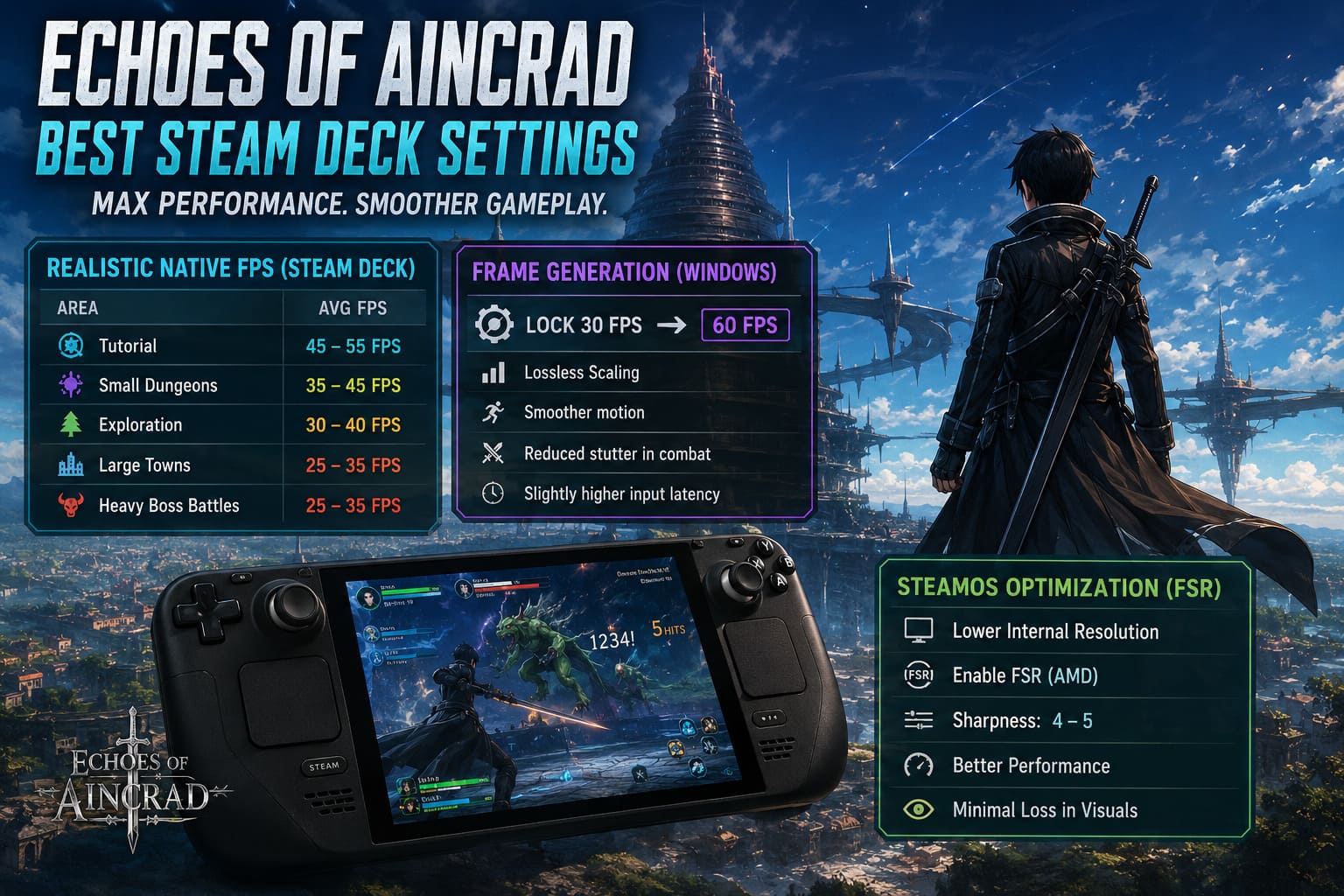
| Area | Average FPS |
|---|---|
| Tutorial | 45–55 |
| Small Dungeons | 35–45 |
| Exploration | 30–40 |
| Large Towns | 25–35 |
| Heavy Boss Battles | 25–35 |
Those numbers may fluctuate depending on future updates, but they’re much closer to what I actually experienced than unrealistic claims of flawless 60 FPS.
Frame Generation Changes Everything
This is where things become interesting.
If you’re running Windows on your Steam Deck, Lossless Scaling can make a surprisingly big difference.
Instead of forcing the hardware to render 60 actual frames every second, you can lock the game around 30 FPS and let frame generation create additional frames between them.
The result isn’t identical to native 60 FPS.
Input latency is still based on the original frame rate.
However, visually, movement becomes dramatically smoother.
Fast sword combat especially benefits from this technique.
For players comfortable using Windows on their Deck, this is probably the single biggest quality-of-life improvement currently available.
Prefer Staying on SteamOS?
Not everyone wants to dual-boot Windows.
Thankfully SteamOS still offers one useful option.
AMD’s built-in FSR scaling can recover a noticeable amount of performance.
Here’s the approach I’d recommend:
- Lower internal resolution.
- Enable SteamOS FSR.
- Keep sharpness around level 4 or 5.
- Accept a slight reduction in image clarity.
On the Deck’s display, the difference is much less noticeable than you’d expect.
I’d rather sacrifice a little sharpness than deal with constant stuttering during combat.
Don’t Install the Game on a MicroSD Card
This is probably the easiest recommendation in the entire guide.
Use the internal SSD.
Modern games stream enormous amounts of textures and world data.
During testing, storage speed clearly influenced loading consistency and asset streaming.
If your Steam Deck has enough internal storage available, that’s absolutely where Echoes of Aincrad belongs.
Shader Stutter Isn’t Completely Avoidable
One thing that frustrated me during my first hour was random hitching whenever I entered new locations.
Initially I assumed something was broken.
It wasn’t.
The game was compiling shaders.
Thankfully, these interruptions became less frequent the longer I played.
After revisiting the same regions, traversal became noticeably smoother because the shader cache had already been built.
So if performance feels rough during your very first session, don’t panic immediately.
Some of those stutters naturally disappear over time.
Advanced Tweaks Worth Considering
If you’re comfortable modifying your Steam Deck beyond default settings, there are a couple of extra optimizations worth exploring.
Some experienced users report positive results after:
- Increasing swap file size.
- Adjusting UMA memory allocation.
- Installing CryoUtilities.
These tweaks won’t suddenly double your frame rate.
However, they may improve overall stability during very long play sessions while reducing memory-related slowdowns in demanding areas.
I generally recommend them only for users who already understand what these utilities change.
For everyone else, the standard SteamOS settings are perfectly adequate.
How to Fix Echoes of Aincrad Save File Corrupted and Cloud Sync Error
Is the Steam Deck Version Worth Playing?
After spending plenty of time with the game, my answer is actually yes—with reasonable expectations.
Echoes of Aincrad clearly targets significantly stronger hardware than Valve’s handheld.
You can feel that throughout the adventure.
But once the graphics settings are adjusted, unnecessary visual effects are disabled, and SteamOS is configured properly, the game becomes surprisingly enjoyable.
No, it isn’t a locked 60 FPS experience.
No, some larger towns won’t suddenly become perfectly smooth.
But combat feels responsive enough, exploration remains enjoyable, and the portability adds something special that desktop systems simply can’t replicate.
I found myself happily grinding quests from the couch, something I probably wouldn’t have done if I were tied to my desktop.
For me, that convenience outweighs the occasional frame drop.
Echoes of Aincrad Memory Leak Fix: How to Fix Low FPS, VRAM Exhausted, and UE5 Crashes
Final Verdict
Echoes of Aincrad asks a lot from modern hardware, and the Steam Deck has to work incredibly hard just to keep up. That said, dismissing the game as “unplayable” would be unfair.
With sensible graphics settings, maximum TDP, manual GPU clocks, and smart use of SteamOS FSR—or Lossless Scaling if you’re running Windows—you can transform a frustrating first impression into a genuinely enjoyable portable RPG experience.
I also expect things to improve over time. Major RPG releases often receive several optimization patches after launch, and handheld compatibility tends to get better as developers refine shader compilation, CPU scheduling, and memory management. If Bandai Namco continues supporting the game with performance updates, Steam Deck players could see even more consistent frame rates in the months ahead.
Until then, the best strategy isn’t chasing ultra settings or impossible benchmark numbers. Instead, focus on creating a stable experience that keeps combat smooth and exploration comfortable. After all, a consistent 30–40 FPS with good frame pacing is far more enjoyable than a wildly fluctuating frame rate that constantly breaks immersion.
If you’re willing to spend a few minutes adjusting the settings before diving into Aincrad, the Steam Deck proves it can still deliver an engaging adventure—and one that’s easy to pick up whether you’re at home or on the move.