RTX 4070 Performance Guide: Resonance: A Plague Tale Legacy Ray Tracing Performance Hit and Optimizations
Asobo Studio has never been shy about making PCs sweat. The studio has already shown with games such as Microsoft Flight Simulator and the previous A Plague Tale titles that visual ambition can come with a very real hardware bill. Resonance: A Plague Tale Legacy continues that tradition, building a dark medieval world packed with dense environments, dramatic lighting, atmospheric effects, detailed architecture, and the kind of visual spectacle that makes you stop moving just to stare at the screen.
And yes, it looks absolutely gorgeous.
The problem starts when you decide to turn everything up.
For RTX 4070 owners, 1440p is normally the card’s comfort zone, especially when you want high or ultra settings without turning your graphics menu into a negotiation with Satan. But Resonance: A Plague Tale Legacy pushes modern rendering techniques hard, and ray tracing is where things get particularly spicy. Community performance reports indicate that enabling the game’s full ray-tracing feature set can produce a huge performance penalty at native resolution.
That doesn’t mean the RTX 4070 can’t handle the game. It means you need to be smarter than simply clicking Ultra + Ray Tracing and hoping for the best.
Resonance: A Plague Tale Legacy PC Optimized Settings Guide for RTX 3060
Why Ray Tracing Hits So Hard
The appeal of ray tracing in Resonance: A Plague Tale Legacy isn’t difficult to understand. This is a game built around atmosphere, darkness, firelight, fog, stone architecture, and dramatic transitions between light and shadow. Those are practically ray tracing’s favorite playgrounds.
Traditional lighting techniques can look excellent, but they rely heavily on precomputed information, screen-space effects, shadow maps, and other tricks designed to approximate how light behaves. Ray tracing approaches the problem differently, calculating lighting interactions dynamically.
That becomes particularly noticeable when Sophia moves through dark interiors, underground areas, or locations illuminated by torches and other moving light sources. Shadows behave more naturally, ambient lighting reacts dynamically, and light can produce a much more convincing sense of depth.
The catch? Your GPU has to do all that math in real time.
Ray-traced global illumination, ambient occlusion, and shadows can create a substantial workload. In a visually complex environment, there is simply far more information for the GPU to process than there is with conventional rasterized lighting.
That’s why the RTX 4070 can go from ‘this is buttery smooth’ to ‘why did my FPS just fall off a cliff?’ after switching ray tracing on.
RTX 4070 at 1440p: What Performance Should You Expect?
Based on the performance figures and community reports referenced for the game, the RTX 4070 performs very comfortably when ray tracing is disabled.
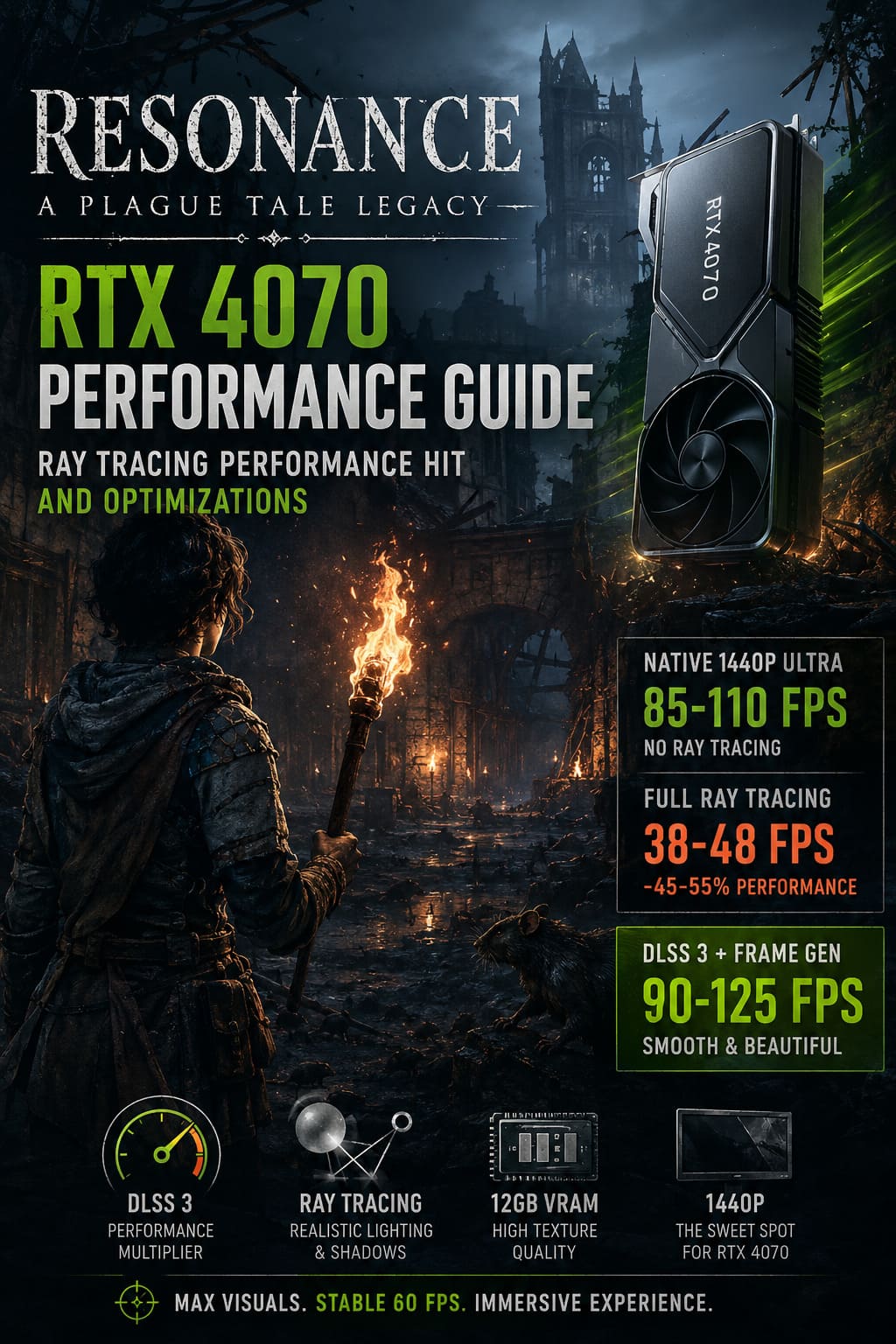
At native 1440p with Ultra settings, reported frame rates can sit roughly in the 85–110 FPS range, although the exact result naturally depends on the scene, environment complexity, and other system variables.
That is exactly the sort of workload where the RTX 4070 makes sense. You get high image quality, high refresh-rate potential, and enough GPU horsepower to enjoy a visually demanding single-player adventure without constantly watching the performance counter.
Then ray tracing enters the chat.
With the full ray-tracing configuration enabled at native 1440p, reported performance can fall into approximately the 38–48 FPS range. That’s potentially a 45–55% performance reduction compared with the non-ray-traced baseline.
For a cinematic game, 40-ish FPS isn’t automatically unplayable. But there’s a huge difference between a stable 40 FPS experience and a game bouncing unpredictably between 40, 50, and 60 FPS while producing occasional frametime spikes.
And honestly, frametime consistency matters more than a flashy average FPS number in a game like this.
If you’re walking through a quiet corridor at 55 FPS, everything may feel perfectly fine. If you suddenly enter a complicated outdoor environment and the frame pacing collapses, the experience can feel noticeably rough even if your average benchmark result looks respectable.
The 12GB VRAM Question
The RTX 4070 comes equipped with 12GB of GDDR6X VRAM, which remains a capable configuration for 1440p gaming. However, Resonance: A Plague Tale Legacy can push memory usage surprisingly close to that ceiling when you combine ultra-quality assets, high-resolution textures, complex geometry, and ray tracing.
Reported VRAM allocation can approach roughly 10.5–11.5GB at 1440p under aggressive settings.
That doesn’t automatically mean the card is running out of VRAM. There’s an important distinction between allocated memory and actual memory pressure. Games can reserve VRAM aggressively without necessarily exhausting the physical pool.
Still, the closer you get to the 12GB limit, the less comfortable the situation becomes.
Moving toward 4K, increasing texture-related settings, or using particularly demanding streaming configurations can push the card harder. If the system genuinely runs out of available VRAM, you may see symptoms such as stuttering, asset pop-in, inconsistent frame pacing, or crashes depending on the game engine and system configuration.
DLSS 3 Is the RTX 4070’s Secret Weapon
This is where things get much more interesting.
The RTX 4070 isn’t just a conventional rasterization GPU. Its Ada Lovelace architecture gives PC players access to NVIDIA’s DLSS technologies, and Resonance: A Plague Tale Legacy is exactly the sort of demanding game where those features can make a dramatic difference.
DLSS Super Resolution reduces the amount of work required to produce the final image by rendering internally at a lower resolution and reconstructing the result with AI-assisted techniques.
At 1440p, DLSS Quality is the setting I’d start with.
It generally provides a much better compromise than aggressively lowering the internal resolution yourself. You get a substantial reduction in rendering workload while retaining a presentation that can look remarkably close to native resolution during actual gameplay.
For ray tracing, this isn’t some optional gimmick I’d ignore. DLSS can be the difference between reluctantly disabling ray tracing and actually being able to enjoy it.
Frame Generation Changes the Equation
Then there is DLSS Frame Generation.
This technology uses the RTX 4070’s dedicated hardware to generate additional frames between traditionally rendered frames. The result can dramatically increase the number shown by your FPS counter.
In the performance scenarios described by the supplied benchmark figures, a roughly 40 FPS native ray-traced result can potentially climb toward the 90–125 FPS range when DLSS Super Resolution and Frame Generation are combined, depending on the scene and configuration.
That’s a massive visual improvement in fluidity.
There is an important caveat, though: Frame Generation doesn’t magically make the underlying game render at 120 FPS. Your actual rendered frames and input response are still based on the underlying performance. Frame Generation creates additional displayed frames, so it works best when the base frame rate is already reasonably healthy.
For a story-driven third-person adventure, however, this can be an excellent trade-off. You’re not playing a competitive shooter where every millisecond of latency is sacred. You’re exploring a cinematic world where smoother camera movement and animation can make the entire presentation feel dramatically better.
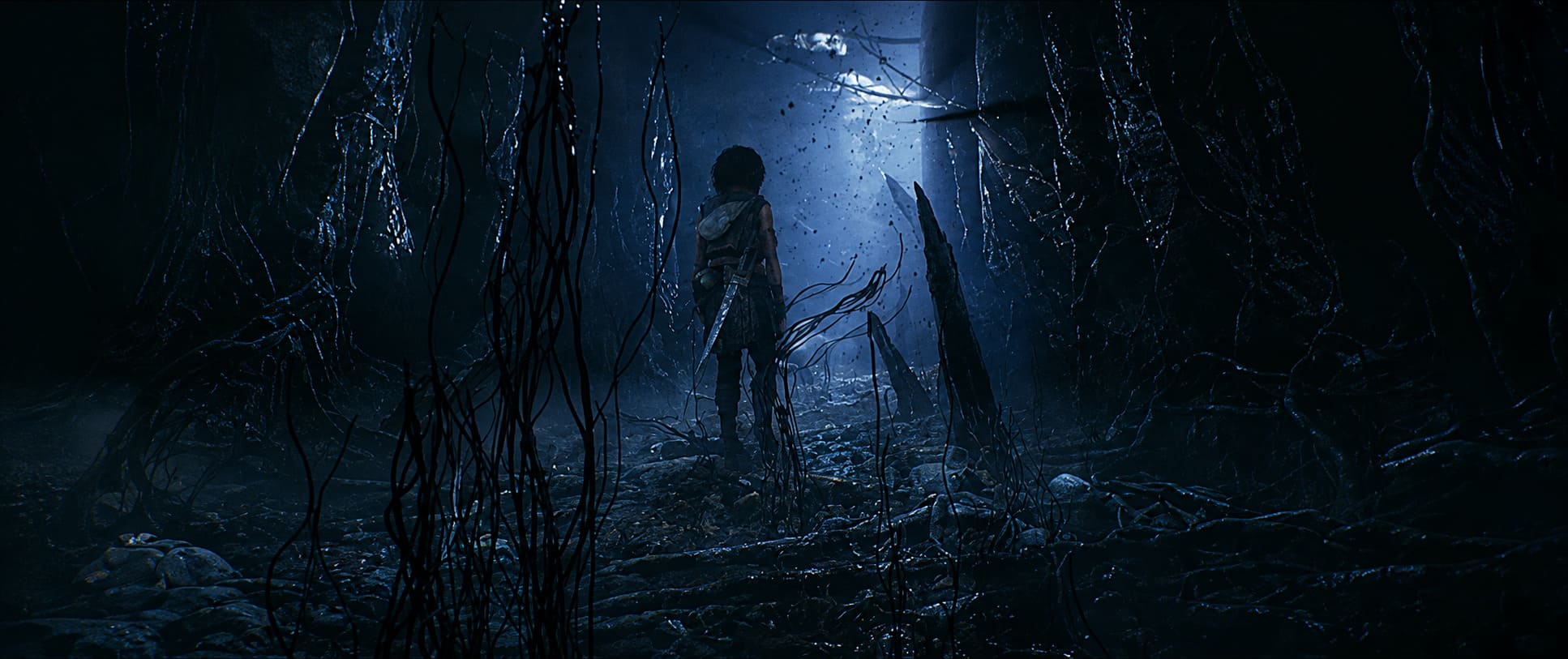
My Recommended RTX 4070 Settings
If I were sitting down with an RTX 4070 and wanted the best-looking version of the game without turning my PC into a space heater, this is where I’d start:
| Setting | Recommended Choice |
|---|---|
| Resolution | 2560×1440 |
| Preset | Ultra |
| Ray Tracing | Selective |
| DLSS Super Resolution | Quality |
| DLSS Frame Generation | On |
| Texture Quality | High/Ultra |
| Ray-Traced Shadows | Off if performance is tight |
| Frame Rate Limit | 60 FPS or monitor refresh target |
The biggest trick here is not treating ray tracing as an all-or-nothing switch.
If ray-traced shadows are among the most expensive effects in the game’s rendering pipeline, disabling them while retaining other ray-traced lighting features can deliver a much better performance-to-quality ratio. Standard high-quality shadow maps can still look excellent, particularly when you’re moving through the world instead of standing three feet from a wall inspecting shadow edges.
That’s the kind of compromise I actually like.
You’re not destroying the game’s visual identity. You’re cutting the expensive stuff that provides the least noticeable return during normal gameplay.
Stable 60 FPS Can Beat a Wild 90 FPS
Here’s another setting that gets overlooked because gamers love seeing giant numbers in the corner of the screen: frame-rate limits.
If your system constantly swings between 50 and 90 FPS, locking the game to a stable 60 FPS can make it feel considerably smoother. A consistent frame delivery pattern is often more pleasant than a higher but erratic average.
For Resonance: A Plague Tale Legacy, this makes particular sense. This isn’t an esports title where you’re chasing every possible frame. It’s a heavily cinematic adventure, and a stable 60 FPS provides enough fluidity to keep combat, exploration, and camera movement feeling responsive without forcing the RTX 4070 to operate at maximum capacity every second.
If your monitor supports VRR, such as G-SYNC or FreeSync, that’s even better. Pairing a sensible FPS cap with variable refresh can produce a remarkably smooth experience.
The Verdict: Don’t Fight the RTX 4070 — Work With It
Resonance: A Plague Tale Legacy looks like exactly the kind of game that makes PC enthusiasts obsess over graphics settings. The visuals can be spectacular, but the performance cost of full ray tracing is substantial, particularly at native 1440p.
The RTX 4070 is absolutely capable of running the game well, but native Ultra with every ray-tracing feature enabled is not the configuration I’d recommend. The numbers suggest that the GPU takes a brutal hit when asked to calculate everything at full resolution, and the resulting 40-ish FPS territory simply isn’t worth the sacrifice for most players.
The smarter setup is 1440p, Ultra-quality assets, DLSS Quality, and Frame Generation when you want maximum smoothness. If you’re sensitive to Frame Generation’s additional latency or visual artifacts, disable it and selectively reduce the heaviest ray-tracing effects instead.
My personal sweet spot would be 1440p + Ultra + DLSS Quality + selective ray tracing + a stable 60 FPS target. It keeps the atmosphere, lighting, textures, and cinematic presentation that make Asobo’s game so impressive while avoiding the classic PC-gaming mistake of sacrificing half your frame rate for a graphical effect you barely notice while actually playing.
Because let’s be honest: staring at a gorgeous screenshot is fun. Actually playing the game at a smooth frame rate is better.