How to Fix Last Pirates: Die Together Connection Errors and Invite Friends Not Working (2026 Guide)
When I first jumped into Last Pirates: Die Together, I expected goofy pirate chaos, terrifying monsters, and plenty of accidental teammate launches into the ocean thanks to those ridiculously stretchy arms. What I did not expect was spending nearly as much time fighting network problems as fighting cursed creatures.
Since launching into Steam Early Access, the game has attracted a huge wave of players. That is great news for the community, but it also means overloaded matchmaking systems, occasional backend hiccups, and a few frustrating bugs that can make co-op sessions nearly impossible to enjoy.
If you are dealing with failed lobby connections, infinite loading screens, random disconnects, voice chat issues, or Steam invites that refuse to work, you are definitely not alone. After digging through community discussions, developer updates, technical reports, and countless player experiences, I put together this complete troubleshooting guide covering the most effective solutions available right now.
Why Last Pirates: Die Together Is Having Multiplayer Problems
Unlike many traditional co-op games, Last Pirates relies heavily on synchronized physics interactions. Every swinging arm, every object you carry, every rescue attempt, and every monster encounter must stay synchronized across all connected players.
That means even relatively minor network inconsistencies can create major gameplay issues.
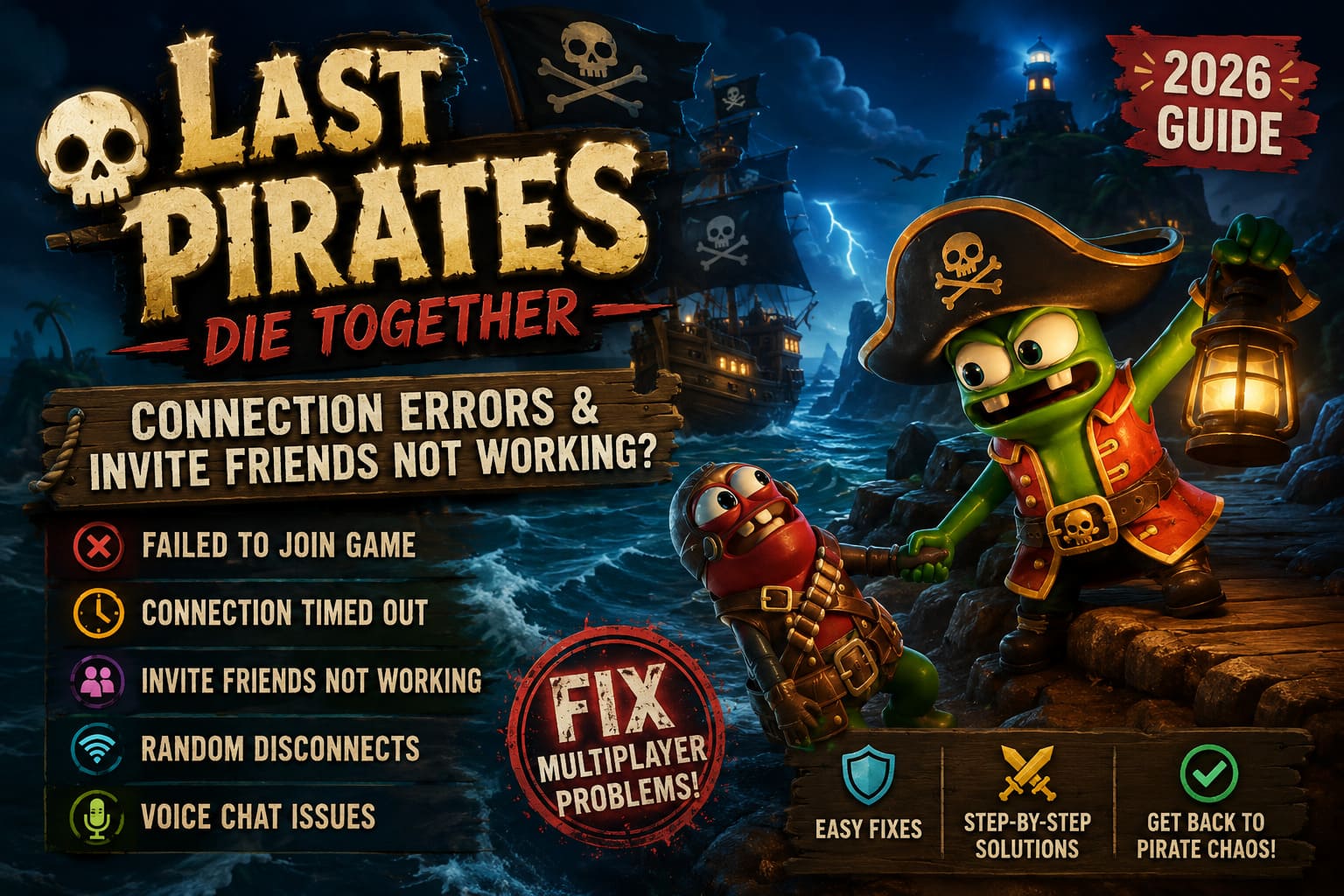
The most common symptoms include:
- Failed to Join Game errors
- Connection Timed Out messages
- Endless loading screens
- Steam friend invites not appearing
- Lobby creation failures
- Players disconnecting mid-match
- Voice chat desynchronization
- Friends unable to locate hosted sessions
In many cases, the issue is not your internet connection at all. Instead, it is usually caused by mismatched server settings, corrupted configuration files, firewall conflicts, or temporary backend instability.
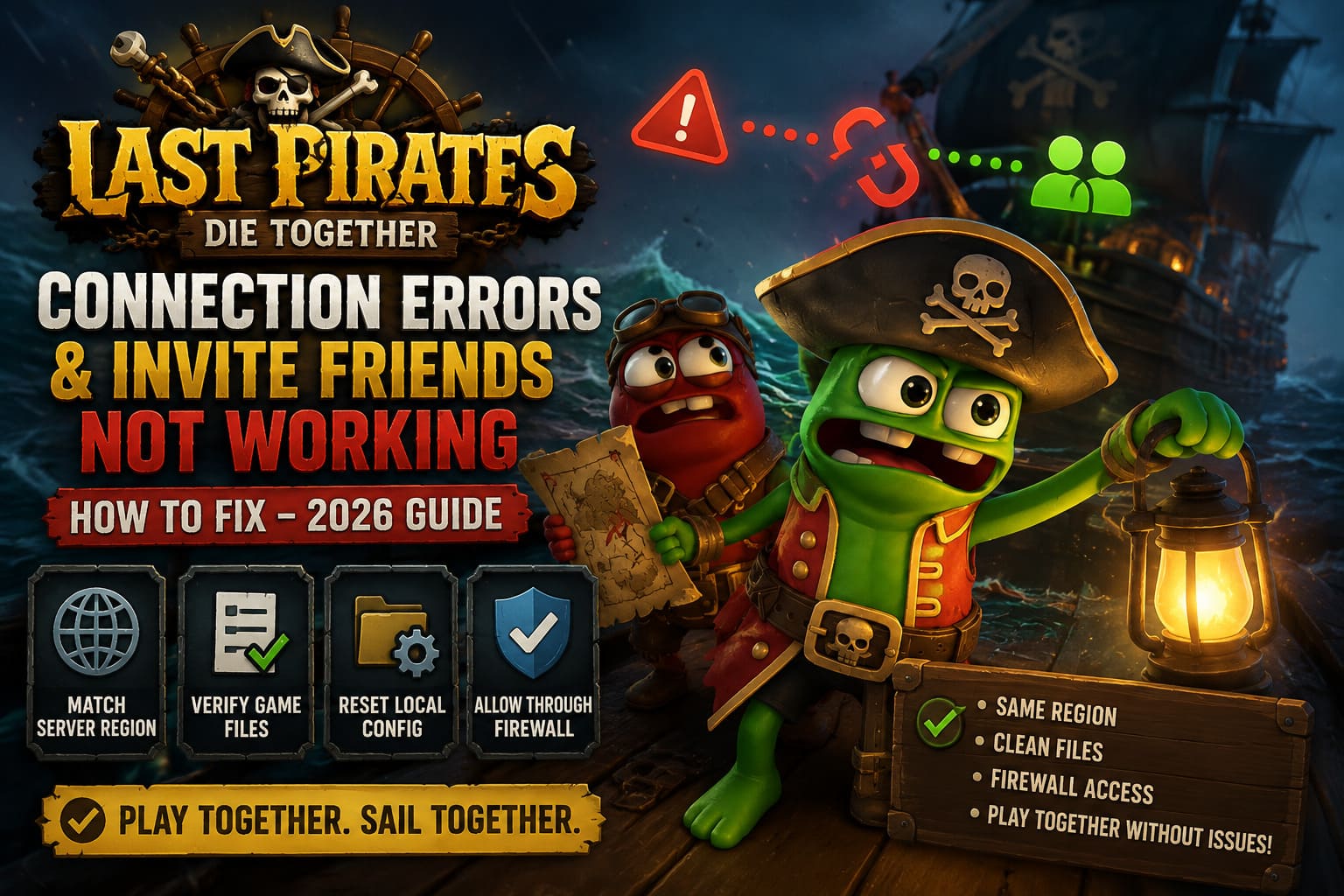
Fix #1: Make Sure Everyone Uses the Same Server Region
This is by far the easiest fix and, surprisingly, one of the most successful.
Many players assume Steam friend invites automatically bypass region restrictions. At the moment, Last Pirates does not always handle that process smoothly.
If one player is connected to a different regional server cluster, the invitation may fail silently without displaying a useful error message.
How to Check Your Region
| Step | Action |
|---|---|
| 1 | Launch the game |
| 2 | Open Settings |
| 3 | Navigate to Gameplay |
| 4 | Locate Server Region |
| 5 | Compare settings with every member of your crew |
Make sure everyone selects the exact same region.
Examples include:
- Europe
- North America East
- North America West
- Asia
- South America
Even a single player using a different region can prevent lobby synchronization.
From my experience, this simple adjustment resolves a surprisingly large percentage of multiplayer failures.
Fix #2: Verify Game Files Through Steam
Early Access games receive constant patches.
Every update introduces the possibility of corrupted files, incomplete downloads, or leftover data from previous versions.
Whenever multiplayer suddenly stops working after an update, verifying game files should be one of your first troubleshooting steps.
Verify Integrity of Files
- Open Steam.
- Go to Library.
- Right-click Last Pirates: Die Together.
- Select Properties.
- Open Installed Files.
- Click Verify Integrity of Game Files.
Steam will automatically scan the installation and replace damaged or missing files.
I have personally fixed several multiplayer games over the years with nothing more than a verification scan.
Fix #3: Remove Corrupted Local Configuration Files
Players who participated in early demos, testing builds, or preview events are especially vulnerable to configuration conflicts.
Old settings occasionally survive updates and create compatibility problems with newer server builds.
Reset Local Configuration
- Press Windows + R.
- Enter:
%localappdata%
- Locate the Last Pirates or RetroStyleGames folder.
- Back up any save files you want to keep.
- Delete configuration and cache files.
- Restart the game.
A fresh launch forces the client to generate clean settings and often eliminates connection loops.
Fix #4: Allow the Game Through Windows Firewall
Windows Defender is excellent at protecting your PC.
It is also excellent at breaking multiplayer games.
Sometimes firewall rules block networking traffic without producing any obvious warning.
Check Firewall Permissions
Open Windows Defender Firewall and verify that:
- Last Pirates: Die Together is allowed
- Steam is allowed
- Steam Networking Services are allowed
- Multiplayer traffic is permitted on both Private and Public networks
If permissions are missing, manually create new firewall exceptions.
Administrator Mode
It is also worth running both the game executable and any included networking services as administrator.
To do this:
- Browse local files through Steam.
- Locate the game executable.
- Right-click Properties.
- Open Compatibility.
- Enable Run This Program as Administrator.
This prevents permission conflicts that can interfere with networking components.
Fix #5: Reset DNS and Network Stack
Sometimes the problem exists outside the game entirely.
A stuck DNS cache or damaged network configuration can prevent stable communication with multiplayer servers.
When random disconnects appear after previously working normally, this fix is often worth trying.
Open Command Prompt as Administrator
Run the following commands one at a time:
ipconfig /flushdns
netsh winsock reset
netsh int ip reset
After running all commands:
- Restart your PC.
- Power cycle your modem and router.
- Launch Steam again.
- Test multiplayer connectivity.
Many players report immediate improvements after resetting Windows networking components.
Fix #6: Use the Manual Lobby Method When Steam Invites Fail
One of the strangest launch bugs currently affecting Last Pirates involves Steam overlay invitations.
Sometimes clicking Invite Friends simply does nothing.
No error message.
No warning.
Nothing.
Until a permanent fix arrives, the best workaround is creating a password-protected public lobby.
Alternative Lobby Setup
Host:
- Create a public session
- Set a password
- Enable friend-related filters if available
Friends:
- Open the server browser
- Search available sessions
- Locate the host lobby
- Enter the password
This bypasses the broken invitation system entirely and works surprisingly well.
Fix #7: Check Steam Account Restrictions
This one catches many players off guard.
Steam places restrictions on newly created accounts that have not met the platform’s minimum spending requirement.
Limited accounts may encounter restrictions involving:
- Sending friend requests
- Certain social features
- Multiplayer invitation systems
Quick Solution
- Have the unrestricted account send the friend request first.
- Accept the request.
- Use Steam Friends.
- Select Join Game directly from the friend’s profile.
This often bypasses invitation limitations.
Fix #8: Disable VPN Software Before Playing
VPNs are fantastic for privacy.
They are terrible for low-latency physics-based multiplayer games.
Routing traffic through distant servers introduces:
- Increased latency
- Packet loss
- Matchmaking failures
- Voice chat issues
- Physics desynchronization
Before launching Last Pirates:
- Disable VPN applications
- Close tunneling software
- Restart Steam
Several players reported immediate success after disconnecting from VPN services.
Fix #9: Reduce Background Network Usage
One overlooked source of multiplayer instability comes from applications quietly consuming bandwidth.
Before launching the game, close:
- Cloud backup software
- Torrent clients
- Streaming applications
- Browser downloads
- Windows update downloads
While Last Pirates does not require a massive connection, stable bandwidth is far more important than raw speed.
Last Pirates Die Together Monster List and Survival Guide (2026)
When the Problem Is Actually Server-Side
Sometimes you can do everything correctly and still fail to connect.
That is simply the reality of a newly launched Early Access multiplayer title.
Server maintenance, matchmaking outages, backend updates, and unexpected traffic spikes can all create temporary connection problems.
Common indicators of a server-side issue include:
- Multiple friends disconnect simultaneously
- Matchmaking suddenly fails for everyone
- Community reports spike at the same time
- Connection problems appear after a patch deployment
When this happens, your best option is waiting for developers to stabilize infrastructure or deploy hotfixes.
Last Pirates Die Together Multiplayer Guide: How to Play Online Co-Op Max Players
Final Thoughts
As someone who spends far too many hours in co-op survival games, I can confidently say that Last Pirates: Die Together is at its best when four friends are screaming at each other while desperately dragging treasure through monster-infested waters.
The unfortunate reality is that Early Access launches rarely arrive without networking problems. The good news is that most connection issues currently affecting Last Pirates can be fixed without reinstalling Windows, replacing hardware, or performing any extreme troubleshooting.
Start with region synchronization, verify your files, reset network settings, and use password-protected public lobbies if Steam invitations refuse to cooperate. In my testing and from what the community continues to report, those solutions solve the majority of multiplayer problems currently affecting the game.
With regular patches already rolling out, the overall experience should continue improving throughout the coming weeks. Until then, keep your crew on the same server region, avoid VPNs, and always have a backup plan for joining lobbies when the invite system decides to mutiny.