How to Fix Approximately Up Multiplayer Not Working: 2026 Connection Guide
I’ve played PC games for years, from massive AAA multiplayer releases to tiny indie sandbox projects that barely had a few hundred players at launch. One thing I’ve learned is that the first week after release almost always reveals networking issues that simply don’t appear during internal testing.
Approximately Up is one of those games that instantly grabbed my attention. The ship-building mechanics are surprisingly deep, the physics system is entertainingly chaotic, and exploring multiple planets with friends creates some genuinely memorable moments. Unfortunately, getting everyone into the same session isn’t always as enjoyable.
My group encountered nearly every issue imaginable:
- endless loading screens
- lobby synchronization failures
- random disconnects
- players unable to join despite receiving invitations
- the infamous 9999 ping bug
After spending hours experimenting with Windows settings, Steam options, and community suggestions, we eventually managed to make multiplayer stable. This guide contains the solutions that actually helped, along with some personal observations from testing different setups.
Why Approximately Up Multiplayer Can Break
Unlike many online games that rely on dedicated servers, Approximately Up uses peer-to-peer networking (P2P) through Steam.
That means one player’s PC becomes the host while everyone else connects directly to that computer.
This approach has some advantages:
| Advantage | Explanation |
|---|---|
| Lower latency for nearby players | Fewer server hops can improve responsiveness. |
| No regional server queues | Sessions are created instantly by players. |
| Lower infrastructure costs | Great for indie developers. |
However, there are also disadvantages.
Every player’s Windows firewall, antivirus software, router configuration, NAT type, and internet stability suddenly become part of the multiplayer experience. One incorrectly configured computer can prevent the entire lobby from functioning.
That is why multiplayer problems often appear inconsistent.
Fix 1 — Check Your Firewall Before Anything Else
If I had to recommend only one fix, this would be it.
In our group, one friend could host without issues, but another constantly showed 9999 ping. Nothing else seemed wrong.
The culprit? Windows Defender Firewall.
Many antivirus programs treat unknown peer-to-peer traffic as suspicious, especially for newly released games.
I recommend adding Approximately Up to your security software’s exception list instead of simply disabling protection temporarily.
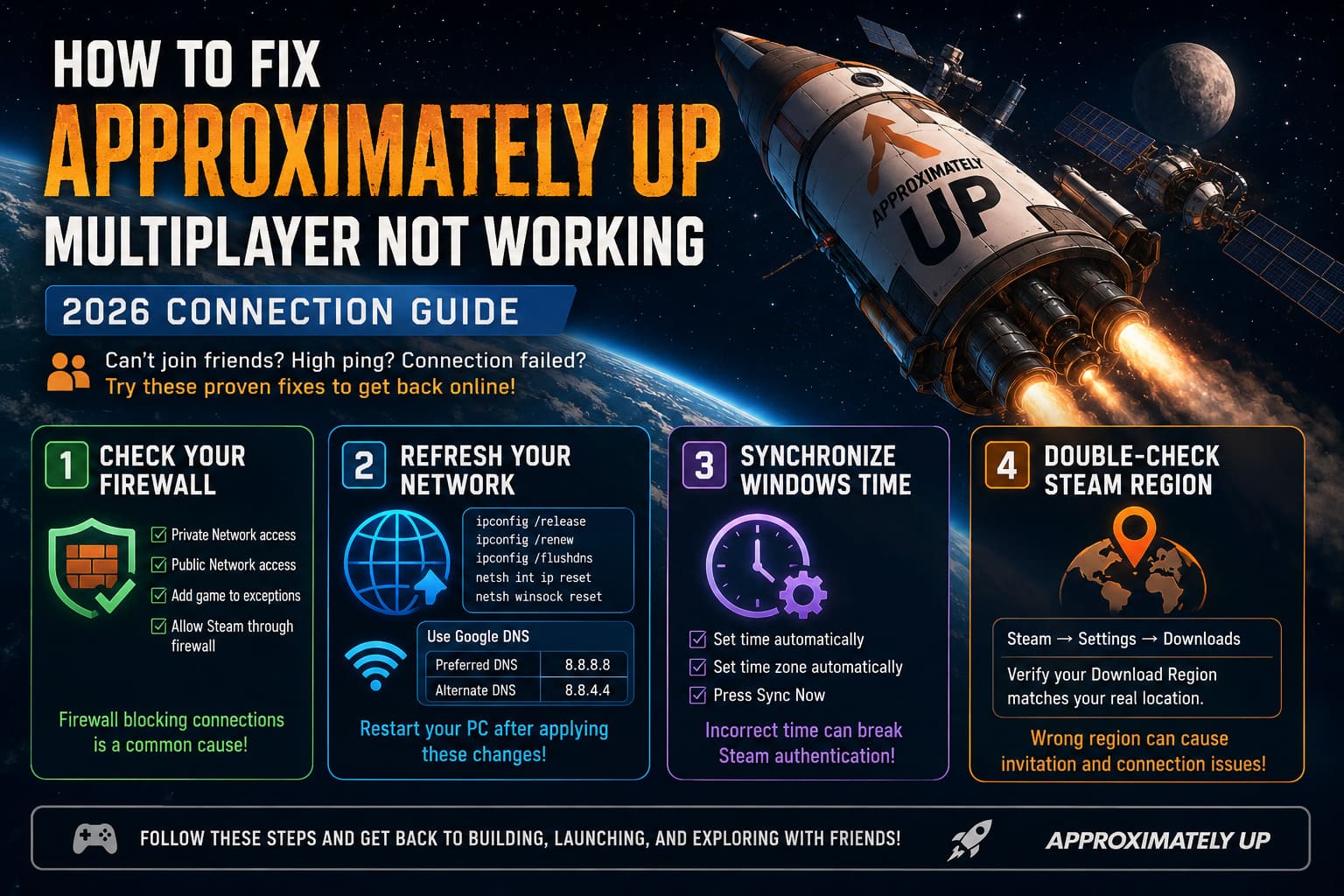
Things to verify:
- Private Network access enabled
- Public Network access enabled
- Game executable added manually if necessary
- Steam allowed through the firewall as well
If you’re using third-party antivirus software such as Norton, Avast, or McAfee, remember that disabling the program doesn’t always disable its network filtering. In some cases, a temporary uninstall followed by a restart works far better than simply clicking “Pause Protection.”
Fix 2 — Refresh Your Network Configuration
Another surprisingly effective solution was refreshing Windows’ networking stack.
I usually perform this whenever multiplayer games begin acting strangely after Windows updates.
Open Command Prompt as Administrator and execute:
ipconfig /release
ipconfig /renew
ipconfig /flushdns
netsh int ip reset
netsh winsock reset
Restart your PC afterward.
While you’re already adjusting network settings, it’s worth switching to a reliable public DNS provider.
Google DNS remains one of the easiest choices:
| Setting | Value |
|---|---|
| Preferred DNS | 8.8.8.8 |
| Alternate DNS | 8.8.4.4 |
Also check that Windows Proxy is disabled unless you intentionally use one.
None of these changes are magic fixes individually, but together they noticeably reduced connection failures for us.
Fix 3 — Synchronize Windows Time
This sounds almost ridiculous until you encounter it yourself.
Steam authentication depends on accurate timestamps.
One friend in our group dual-boots Linux and Windows. His Windows clock was several minutes behind.
He could launch the game normally.
Single-player worked.
But multiplayer invitations failed almost every time.
Turning on automatic time synchronization immediately solved the problem.
Open Windows Date & Time settings and make sure:
- Set time automatically is enabled
- Set time zone automatically is enabled
- Press Sync Now
It takes less than a minute and removes one more possible cause.
Fix 4 — Double-Check Steam Download Region
This isn’t discussed very often, but I noticed strange behavior after changing my Steam download region months ago while downloading another game.
Steam occasionally behaves oddly if your selected region is nowhere near your actual location.
Open:
Steam → Settings → Downloads
Verify that your Download Region matches your real geographical location.
This helped reduce invitation delays for one member of our group.
Fix 5 — Try Different Invite Methods
One interesting launch-week issue involves Steam Overlay.
We repeatedly had sessions where accepting invites through the Shift+Tab overlay either failed completely or disconnected players during loading.
A method that proved much more reliable was:
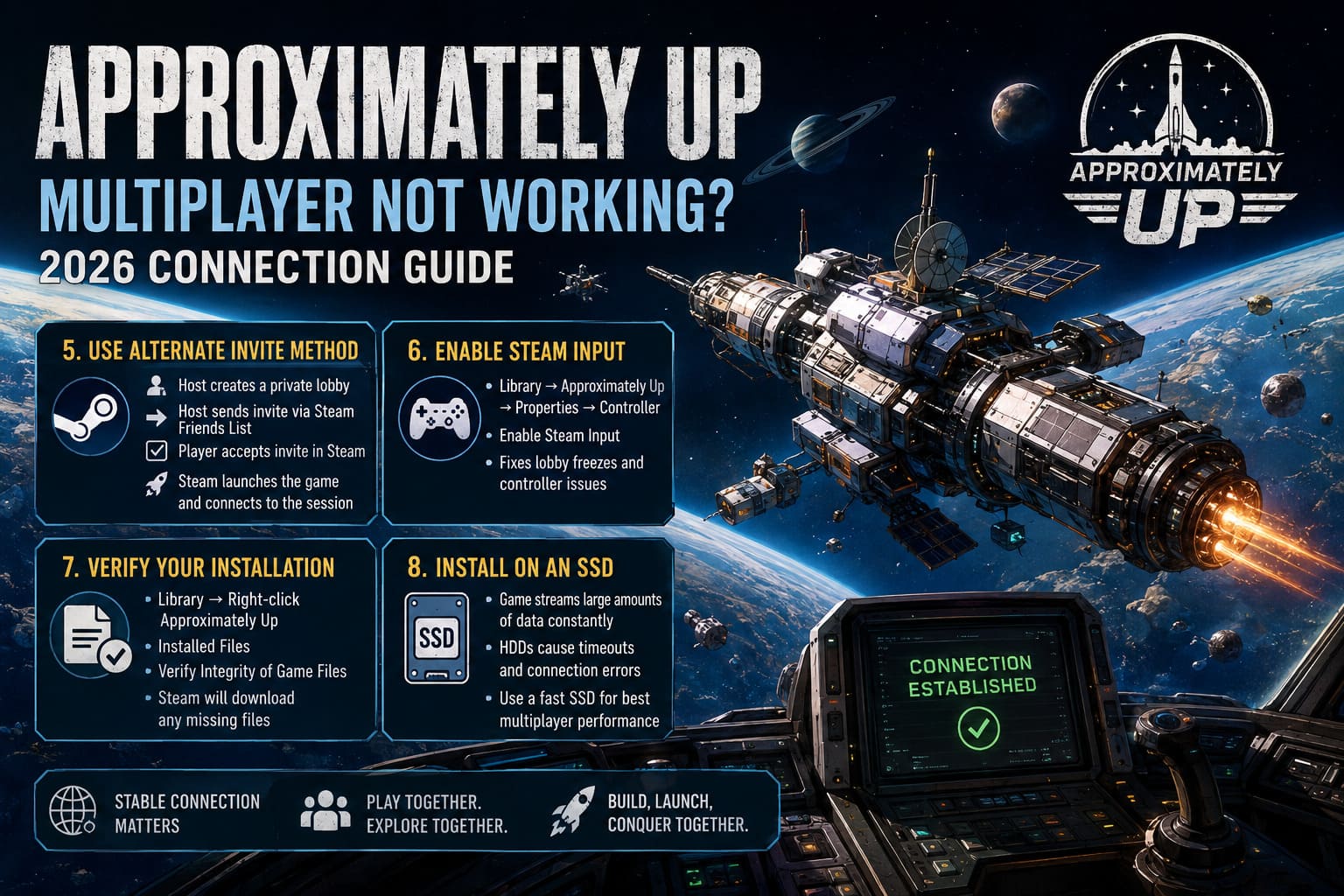
- Host creates a private lobby.
- Joining player closes Approximately Up completely.
- Host sends an invite directly through the Steam Friends List.
- Player accepts the invite from Steam before manually launching the game.
Steam then opens the game automatically and connects directly to the session.
For whatever reason, this worked considerably more consistently for us.
Fix 6 — Steam Input Can Solve Controller Issues
Controller support is still a little rough around the edges.
One player in our group experienced lobby freezes every time they powered on an Xbox controller after joining.
The fix was surprisingly simple.
Inside Steam:
Library → Approximately Up → Properties → Controller
Enable Steam Input.
This lets Steam manage controller translation instead of relying entirely on the game’s own implementation.
If your lobby freezes only after plugging in a controller, this should definitely be on your checklist.
Fix 7 — Verify the Installation
Corrupted files don’t always cause crashes.
Sometimes multiplayer simply refuses to synchronize because one installation differs slightly from everyone else’s.
Steam’s verification tool only takes a few minutes:
- Open Library
- Right-click Approximately Up
- Installed Files
- Verify Integrity of Game Files
Steam automatically downloads anything that’s missing.
I run this after every major update regardless of whether I’m experiencing issues.
It’s become a habit over the years.
Fix 8 — Install the Game on an SSD
Normally I wouldn’t mention storage drives in a multiplayer guide.
However, Approximately Up constantly streams physics data, world assets, and modular ship components.
During our testing, one player running the game from an aging external HDD consistently loaded planets much slower than everyone else.
The result?
Frequent timeout errors.
After reinstalling onto an internal SSD, those problems disappeared.
If possible, avoid:
- USB hard drives
- very old SATA HDDs
- slow portable storage
Fast SSDs significantly improve loading consistency.
How to Fix Approximately Up Crash on Launch, Black Screen, and Startup Issues (2026 PC Guide)
My Recommended Troubleshooting Order
If you’re starting from scratch, I suggest checking everything in this order:
| Priority | Solution | Difficulty |
|---|---|---|
| 1 | Allow the game through Firewall | Easy |
| 2 | Verify Steam files | Easy |
| 3 | Restart networking and flush DNS | Easy |
| 4 | Synchronize Windows clock | Very Easy |
| 5 | Check Steam Download Region | Easy |
| 6 | Enable Steam Input | Easy |
| 7 | Use direct Steam invites | Easy |
| 8 | Reinstall on an SSD if necessary | Moderate |
Approximately Up Pro Movement Guide: Air Strafe Controls & Pro Tips
Extra Tips That Helped Our Group
These aren’t guaranteed fixes, but they’re worth trying:
- Restart Steam before hosting.
- Ask everyone to update the game before joining.
- Avoid background VPN software unless absolutely necessary.
- Close bandwidth-heavy applications like cloud backup tools.
- Have the player with the most stable internet host the lobby.
- Restart your router if connection quality suddenly becomes inconsistent.
Sometimes the simplest changes make the biggest difference.
Final Thoughts
Approximately Up has quickly become one of the more enjoyable indie sandbox games I’ve played recently. The engineering systems encourage creativity, and cooperative exploration becomes genuinely rewarding once everyone is finally connected.
That said, its peer-to-peer networking means multiplayer stability depends far more on the players’ PCs than many modern online games. Most issues I’ve seen weren’t caused by the game itself but by Windows networking, Steam configuration, or security software interfering with the connection process.
If your group is struggling with endless loading screens, failed lobby joins, or the dreaded 9999 ping, don’t immediately assume the servers are down. Work through the fixes above one by one. In my experience, one of them almost always resolves the issue, and once everything is configured correctly, multiplayer sessions become far more reliable and enjoyable.