How to Fix Beast of Reincarnation Steam Download Error and Locked Game Glitch (2026 Guide)
When Beast of Reincarnation finally unlocked on Steam, I expected to spend the evening exploring its world—not troubleshooting a launcher for hours.
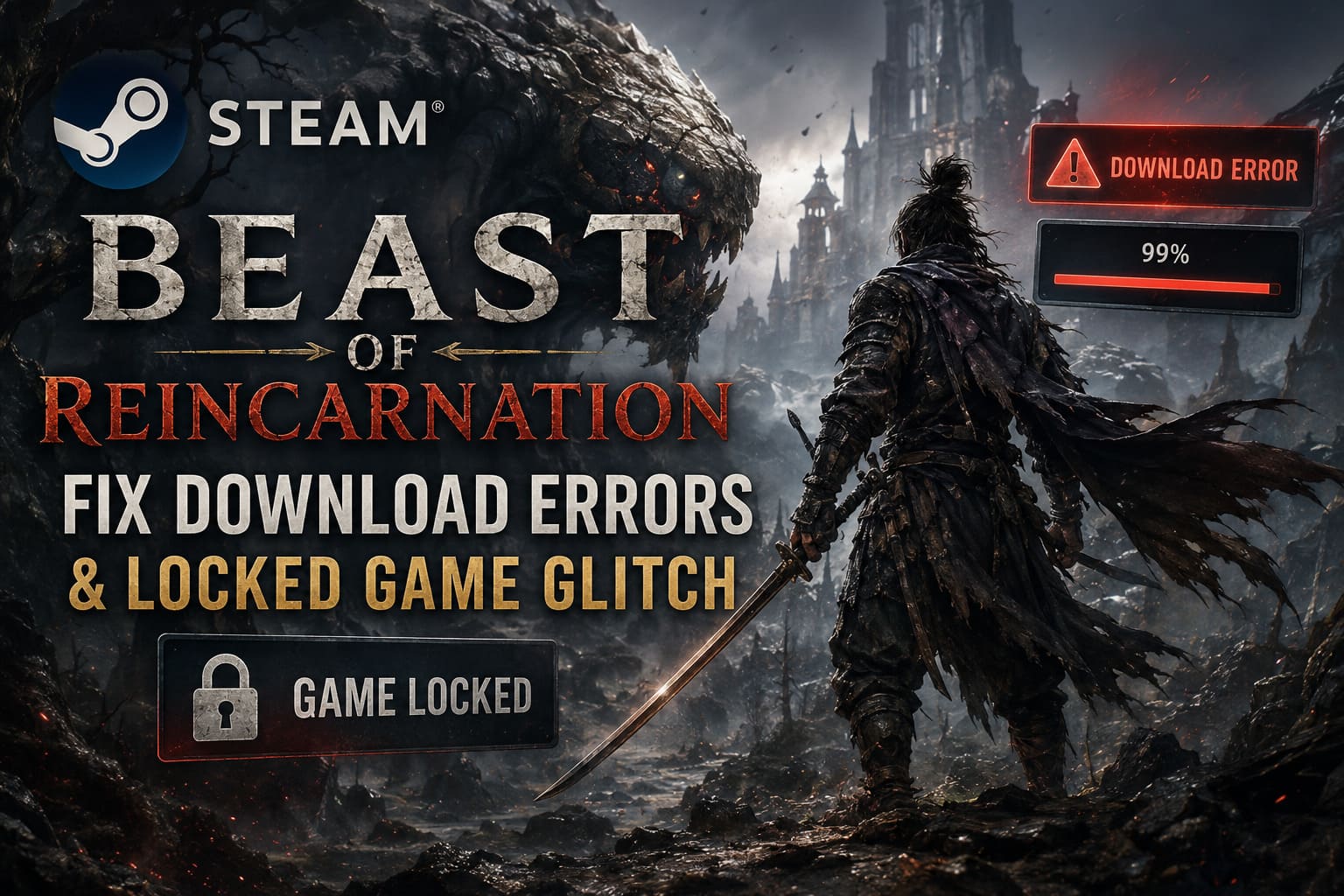
Instead, I found myself staring at a grayed-out Play button while Steam insisted the game was still locked. After finally getting it to launch, another friend couldn’t even finish downloading because Steam kept throwing corrupted download errors at 99%.
After digging through community discussions, comparing solutions from experienced PC gamers, and testing several methods myself, I found that most of these issues have a handful of common causes. The good news is that nearly all of them can be fixed without reinstalling Windows or downloading questionable third-party utilities.
If your copy of Beast of Reincarnation refuses to unlock, won’t finish downloading, or keeps failing verification, this guide walks through the solutions that are actually worth your time.
Why Beast of Reincarnation Is Having Steam Problems
Launch week is always stressful for major Steam releases, and this game is no exception.
From what I’ve seen, most issues fall into one of these categories:
| Problem | Most Common Cause |
|---|---|
| Play button is locked | Steam license hasn’t refreshed |
| Download stuck at 99% | Overloaded Steam download servers |
| Corrupt download error | Damaged download cache or interrupted files |
| Endless verification | Broken Steam library metadata |
| Game crashes immediately | Driver conflicts or Windows security blocking files |
None of these necessarily mean the game itself is broken. In many cases, Steam simply fails to synchronize correctly after launch.
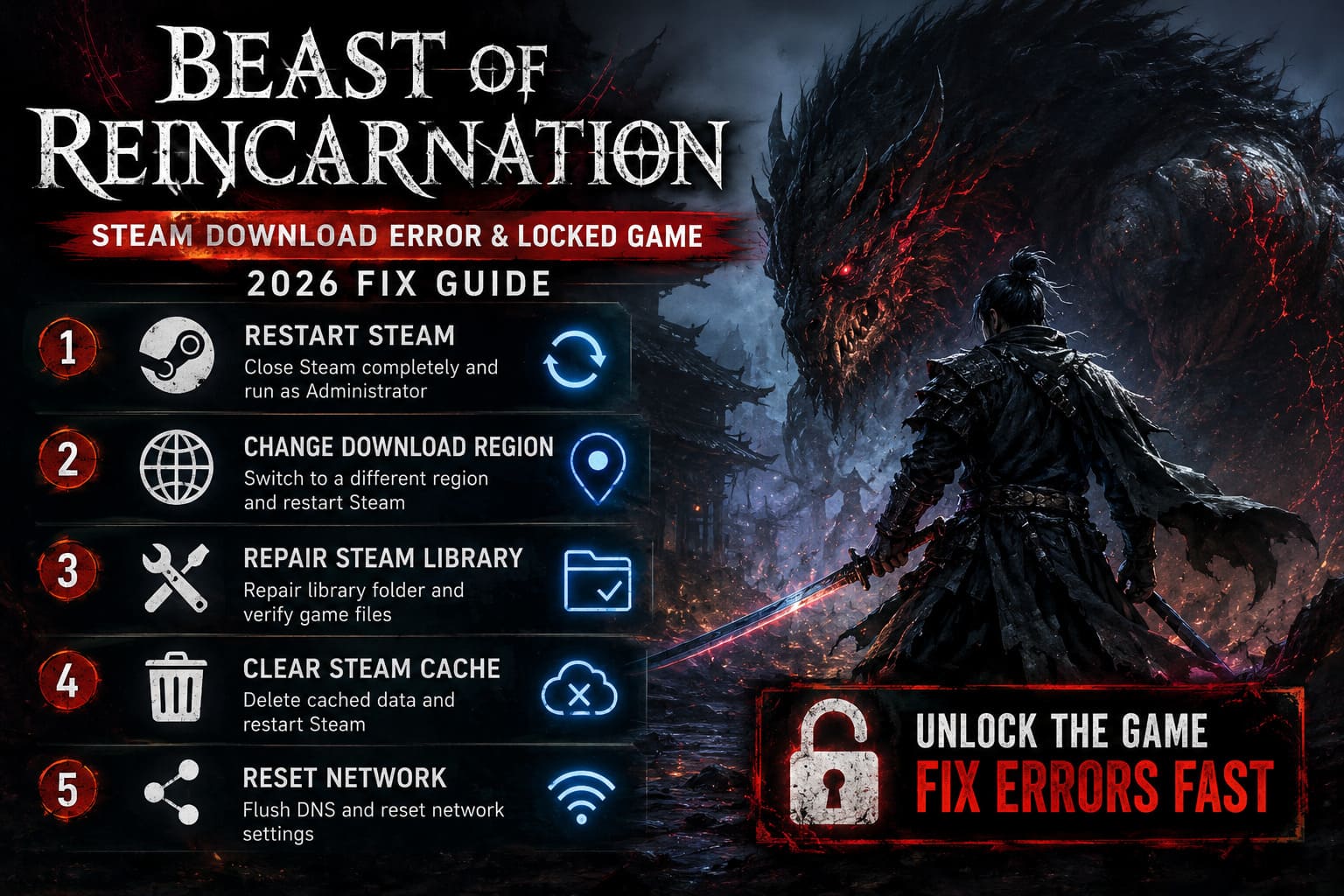
Fix #1: Completely Restart Steam
This sounds basic, but it solved the problem for me faster than anything else.
Don’t simply close the Steam window.
Instead:
- Click Steam → Exit.
- Open Task Manager.
- End every Steam-related background process.
- Launch Steam again using Run as Administrator.
- Return to your Library.
Steam often refreshes your ownership license during startup, which can immediately unlock the game.
Fix #2: Change Your Steam Download Region
One trick that surprisingly worked for a lot of players was switching download regions.
Popular servers become overloaded within minutes of launch, causing corrupted downloads or stalled progress.
Try this:
- Open Steam Settings.
- Select Downloads.
- Change Download Region.
- Restart Steam.
You don’t have to choose another country.
Sometimes simply switching from one nearby server to another is enough for Steam to rebuild the download session.
After changing regions, Steam usually begins checking existing files before continuing the installation.
Fix #3: Repair the Steam Library
Whenever Steam repeatedly verifies files without finishing, I usually suspect the library folder before blaming the game.
Repairing it only takes a minute.
Open:
Steam → Settings → Storage
Locate your installation drive.
Click the menu beside it and choose:
Repair Library Folder
After the repair finishes:
- Right-click Beast of Reincarnation.
- Choose Properties.
- Open Installed Files.
- Select Verify Integrity of Game Files.
Steam will replace damaged files automatically instead of downloading the entire game again.
Fix #4: Clear Steam’s Cached Data
Old cached files occasionally prevent Steam from recognizing updated licenses.
Inside Steam:
Settings → In-Game
Delete the browser data.
Afterward:
- Restart Steam.
- Reboot Windows.
- Check the game again.
It isn’t a magical fix, but I’ve seen it resolve launch-day authentication issues more than once.
Fix #5: Reset Your Network Stack
If downloads constantly fail or restart from zero, Windows networking may be the real culprit.
Open Command Prompt as Administrator and run:
ipconfig /flushdns

netsh winsock reset
Restart both:
- Your PC.
- Your router.
This clears cached network information that sometimes interferes with Steam’s content delivery.
Fix #6: Check Windows Security
One thing I always verify after installing a brand-new game is Windows Security.
Fresh executables occasionally trigger false positives until Microsoft updates its reputation database.
If Windows Defender quarantines part of the installation, Steam may endlessly attempt to repair or verify files.
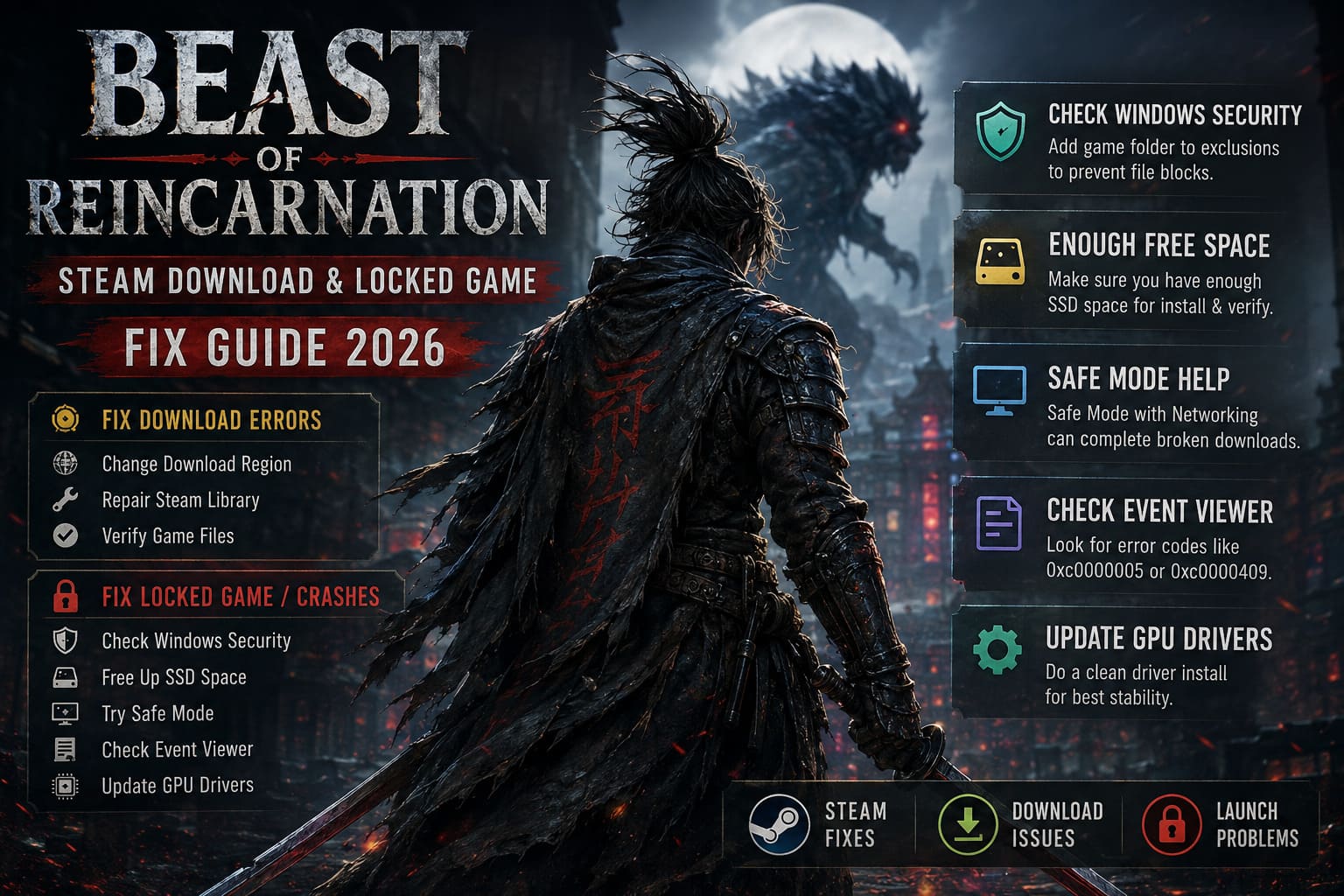
Open:
Windows Security
Navigate to:
Virus & Threat Protection → Exclusions
Add your Beast of Reincarnation installation folder as an exclusion if Windows has been repeatedly blocking or quarantining files.
Only do this if you’re installing the game from the official Steam client.
Fix #7: Make Sure You Have Enough Free SSD Space
Steam doesn’t only need space for the finished installation.
During decompression and verification it temporarily creates additional files.
I generally recommend having:
| Drive Type | Recommended Free Space |
|---|---|
| HDD | 40–50 GB |
| SATA SSD | 35–40 GB |
| NVMe SSD | 30–35 GB |
Running dangerously low on storage often causes installations to freeze during the final stages.
Fix #8: Safe Mode Can Sometimes Finish Broken Downloads
This isn’t something I recommend immediately, but it’s surprisingly effective if nothing else works.
Boot Windows into Safe Mode with Networking.
Launch Steam there.
Because almost every unnecessary driver and background application is disabled, Steam can occasionally finish downloads that constantly fail during a normal Windows session.
Once installation reaches 100%, restart Windows normally.
Fix #9: Check Event Viewer After Launch Crashes
If your download succeeds but the game immediately crashes, Windows usually records the reason.
Open:
Event Viewer
Then navigate to:
Windows Logs → Application
Look for entries mentioning BeastOfReincarnation.exe.
Here are two common exceptions:
| Exception Code | Meaning | Recommended Fix |
|---|---|---|
| 0xc0000005 | Memory access violation | Increase Windows page file and verify RAM stability |
| 0xc0000409 | Stack buffer overrun | Perform a clean GPU driver installation |
These error codes don’t always point directly to the game’s code—they often reveal conflicts elsewhere in the system.
Fix #10: Update Graphics Drivers the Right Way
If you’re already using older GPU drivers, don’t assume Windows Update installed the newest version.
For stubborn launch crashes, I usually prefer a clean installation.
Remove the existing driver completely before installing the latest NVIDIA or AMD release.
This eliminates leftover profiles and corrupted shader caches that can survive standard updates.
Beast of Reincarnation Steam Launch Time US & Price: Release Guide
My Personal Advice After Helping Friends Fix This
After spending launch day comparing notes with other players, one thing became obvious.
Most people immediately jump to reinstalling the game.
Ironically, that’s often the least effective solution.
I’d go through the fixes in this order:
- Restart Steam completely.
- Change download region.
- Repair the Steam Library.
- Verify game files.
- Reset Windows networking.
- Check Windows Security.
- Update GPU drivers if crashes continue.
In most cases, one of those steps gets everything working without downloading the game again.
Extra Tips for a Smooth Launch
A few habits have saved me from countless Steam headaches over the years:
- Avoid pausing and resuming downloads repeatedly during launch day.
- Disable unnecessary overlays while installing.
- Close RGB software and hardware monitoring utilities if Steam behaves strangely.
- Install the game on an SSD whenever possible.
- Wait a few minutes after the official unlock time before assuming something is broken, as Steam’s servers often need time to catch up with the flood of players.
These small precautions won’t solve every issue, but they reduce the chances of corrupted downloads and failed file verification.
Final Thoughts
Launch-day issues are frustrating, especially when you’ve been waiting months to play a game. Fortunately, Beast of Reincarnation’s Steam download failures and locked launch problems are usually caused by Steam synchronization, overloaded download servers, or local Windows configuration—not by a permanently broken installation.
From my own experience, the fastest wins came from refreshing Steam’s license, repairing the library folder, and switching download regions. Those three fixes solved the majority of problems without forcing a complete reinstall.
If the game still refuses to cooperate after trying everything above, don’t panic. Major Steam releases often receive backend fixes during the first 24 to 48 hours, and what looks like a serious technical problem today may disappear after Valve refreshes its servers. Until then, work through the steps methodically, avoid making multiple changes at once, and you’ll have a much better chance of getting into the game without wasting hours on unnecessary reinstalls.