SAO Echoes of Aincrad Low FPS in City of Beginnings: Performance Fix Guide
When I first launched SAO: Echoes of Aincrad, I honestly thought the PC optimization complaints had been exaggerated. The opening sections ran surprisingly well, combat felt responsive, and I was getting a smooth frame rate without touching a single graphics option.
Then I reached the City of Beginnings.
Almost instantly, my FPS dropped from well over 60 to somewhere between 20 and 30. Camera movement became inconsistent, frame pacing turned into a mess, and GPU usage suddenly looked strange. At first I blamed my drivers, then Windows, then even my hardware. After spending several hours experimenting with different settings and comparing results with other PC players, it became clear that the city itself is currently the biggest performance bottleneck in the game.
If you’ve experienced exactly the same issue, you’re definitely not alone.
This guide isn’t about miracle fixes that magically double performance. Instead, it’s a collection of adjustments that actually made a noticeable difference during my own testing and are worth trying until future patches improve the game’s optimization.
Why Does the City of Beginnings Run So Poorly?
One thing became obvious after exploring different regions: the problem isn’t the entire game.
Smaller combat areas, tutorial maps, and many instanced locations perform much better than the main hub. That usually points toward a specific engine bottleneck rather than weak hardware.
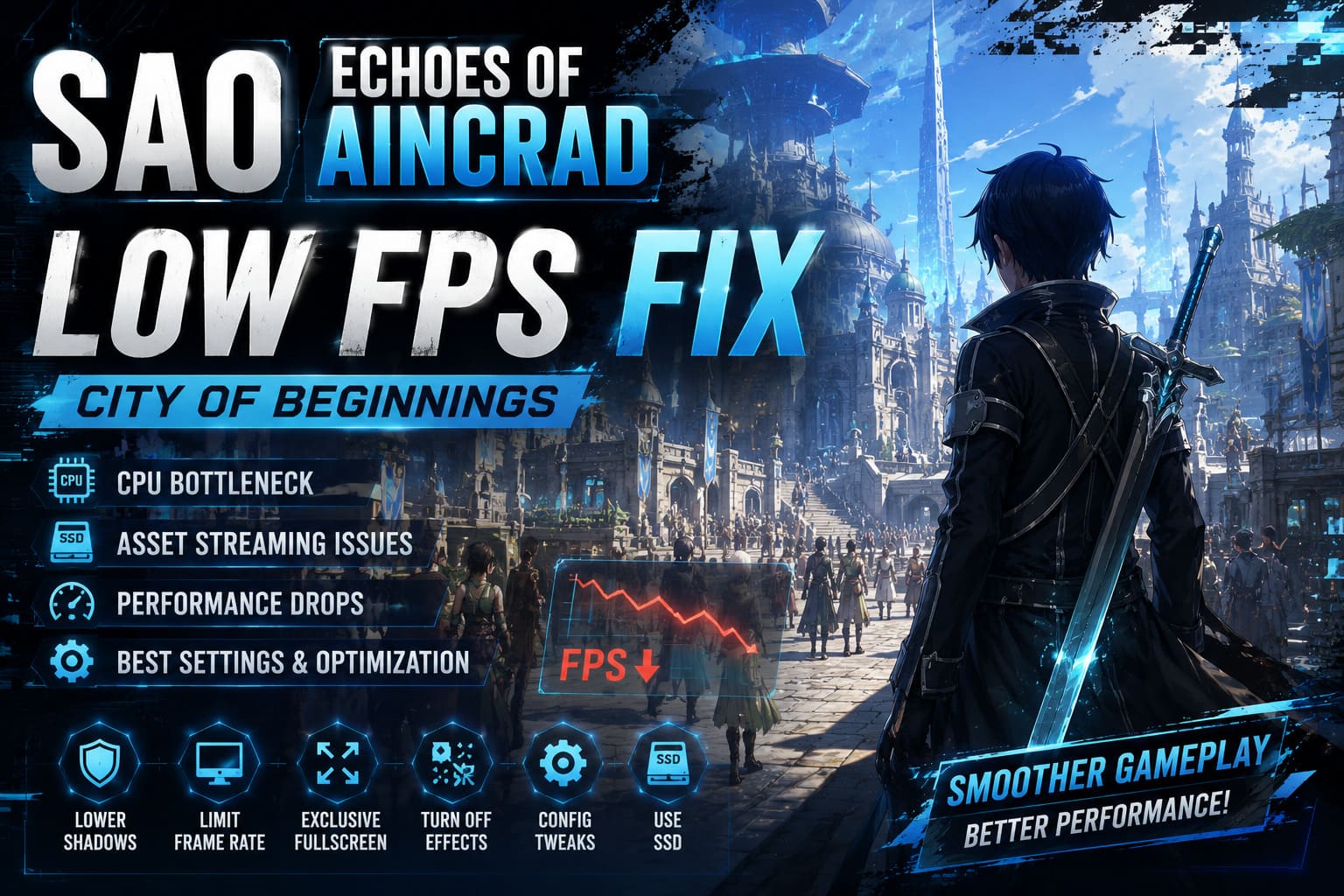
From what I’ve experienced, several factors seem to combine into one major performance problem.
Extremely Dense World Rendering
Unlike combat zones, the City of Beginnings is filled with:
- Dozens of NPCs.
- Online player characters.
- Detailed buildings.
- Decorative objects.
- Animated environmental effects.
- Long-distance visibility.
Every one of these elements increases rendering workload.
Instead of drawing a relatively small battlefield, the engine constantly processes an enormous amount of geometry and textures.
CPU Usage Becomes the Main Limitation
Modern graphics cards rarely reach their full potential if the processor cannot feed them data quickly enough.
Inside the city I noticed GPU usage fluctuating while CPU activity remained unusually high. This is a classic sign of a CPU bottleneck.
Even powerful processors can struggle when an engine isn’t distributing work efficiently across available threads.
Asset Streaming Isn’t Perfect Yet
Another issue that stood out during testing was aggressive texture streaming.
Walking through crowded streets often caused:
- Sudden FPS spikes.
- Brief freezes.
- Delayed texture loading.
- Inconsistent frame times.
The game appears to stream a large amount of world data while you’re moving, especially near crowded districts.
Installing the game on an NVMe SSD definitely helps, but it doesn’t eliminate the issue entirely.
Long Sessions Reduce Performance
After playing for several hours without restarting, overall performance slowly became worse.
The difference wasn’t dramatic at first, but eventually the game felt noticeably less responsive than it had been immediately after launch.
Many players have reported similar behavior, suggesting the current version may suffer from memory management issues during extended play sessions.
Until this gets patched, restarting the game every few hours actually isn’t a bad idea.
The Tweaks That Helped Me the Most
I tried dozens of different “performance fixes.” Some made absolutely no difference.
These are the ones that consistently improved performance on my system.
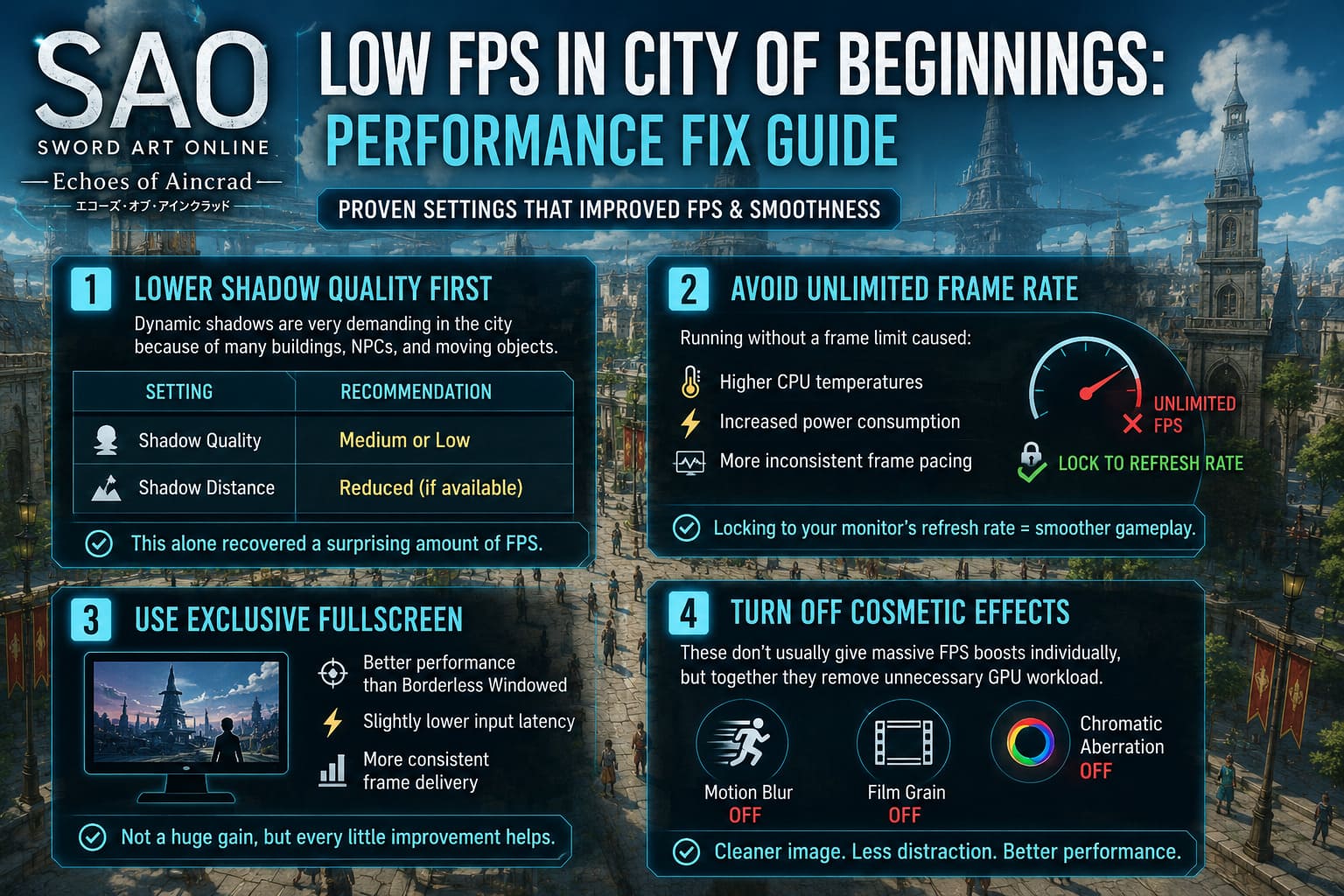
1. Lower Shadow Quality First
If you’re only changing one graphics option, make it shadows.
Dynamic shadows are surprisingly expensive inside the city because of the number of buildings, NPCs, and moving objects.
| Setting | Recommendation |
|---|---|
| Shadow Quality | Medium or Low |
| Shadow Distance | Reduced if available |
This alone recovered a surprising amount of FPS.
2. Avoid Unlimited Frame Rate
Many players automatically disable FPS caps thinking they’ll gain performance.
Ironically, the opposite happened during my testing.
Running without a frame limit caused:
- Higher CPU temperatures.
- Increased power consumption.
- More inconsistent frame pacing.
Locking the game to my monitor’s refresh rate actually produced smoother gameplay than leaving it uncapped.
3. Use Exclusive Fullscreen
Borderless Windowed mode is convenient, but it isn’t always the fastest option.
Fullscreen reduced input latency slightly and made frame delivery feel more consistent.
It’s not a huge gain, but every little improvement helps in crowded areas.
4. Turn Off Cosmetic Effects
These don’t usually create massive FPS improvements individually.
Combined, however, they remove unnecessary GPU workload.
I disabled:
- Motion Blur.
- Film Grain.
- Chromatic Aberration.
The image also became cleaner, which I personally prefer.
Engine Configuration Tweaks
Advanced users can also experiment with the game’s configuration files.
Some players have reported better performance after adjusting rendering values such as shadow distance, foliage density, view distance, and streaming pool allocation.
Before making any changes, remember:
- Always back up configuration files before editing them.
- Future updates may overwrite custom settings or make them unnecessary.
Windows Tweaks Worth Trying
Windows doesn’t always assign games to the fastest GPU automatically, especially on laptops.
I recommend checking that the game is using your dedicated graphics processor through Windows Graphics Settings.
It’s also worth disabling Fullscreen Optimizations from the game’s executable properties.
These tweaks didn’t suddenly add dozens of frames on my PC, but they helped eliminate some inconsistent stuttering.
Keep Drivers Updated
Normally I don’t recommend updating drivers every single release.
However, brand-new games often receive optimization profiles shortly after launch.
If you’re using NVIDIA, AMD, or Intel graphics, installing the latest Game Ready or equivalent driver is worthwhile.
Likewise, make sure your Microsoft Visual C++ runtime packages are fully updated since missing runtime components occasionally cause unexpected crashes or poor shader behavior.
Verify the Game Installation
One surprisingly easy fix is verifying game files through Steam.
Shader data and downloaded assets occasionally become corrupted during installation.
The process only takes a few minutes and can solve random performance issues without reinstalling the entire game.
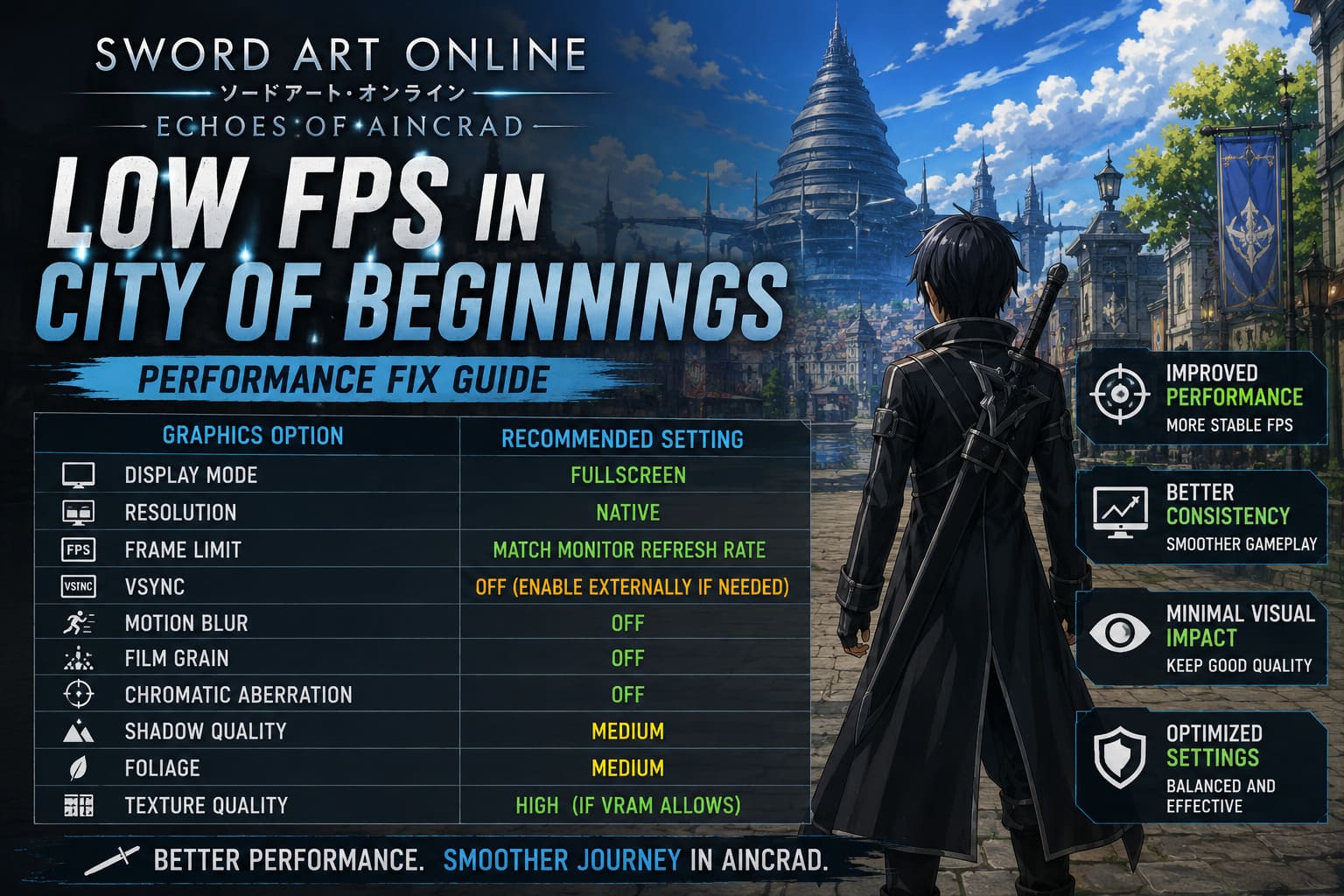
My Recommended Graphics Settings
After several rounds of testing, this setup gave me the best balance between image quality and stable performance.
| Graphics Option | Recommended Setting |
|---|---|
| Display Mode | Fullscreen |
| Resolution | Native |
| Frame Limit | Match Monitor Refresh Rate |
| VSync | Off (enable externally if needed) |
| Motion Blur | Off |
| Film Grain | Off |
| Chromatic Aberration | Off |
| Shadow Quality | Medium |
| Foliage | Medium |
| Texture Quality | High (if VRAM allows) |
Most of these settings have only a small visual impact while improving overall consistency.
SSD vs HDD Makes a Bigger Difference Than You Might Expect
This is one area where I noticed an immediate improvement.
Installing the game on an NVMe SSD reduced loading times considerably and helped minimize texture pop-in while entering busy districts.
Players still using older hard drives may experience:
- Longer loading screens.
- Delayed texture streaming.
- Additional hitching.
- More severe stuttering.
While an SSD won’t completely solve the City of Beginnings problem, it removes one of the biggest storage-related bottlenecks.
What About Steam Deck and Other Handheld PCs?
Handheld gaming PCs can run SAO: Echoes of Aincrad, but expectations should remain realistic.
The City of Beginnings is demanding enough that even desktop hardware struggles.
If you’re using devices like:
- Steam Deck.
- ASUS ROG Ally.
- Lenovo Legion Go.
Lowering the rendering resolution and enabling an upscaling solution can produce a much smoother experience.
Targeting a stable 30–40 FPS generally feels better than chasing unstable higher frame rates.
How to Fix Echoes of Aincrad Shader Compilation Stutter on PC (2026 Guide)
Is This Something Players Can Fully Fix?
Unfortunately, no.
After testing numerous settings, I’m convinced that the biggest issue isn’t weak hardware—it’s the current state of optimization.
That’s actually encouraging.
It means future updates have the potential to improve performance significantly without players needing to upgrade their PCs.
We’ve seen many large PC releases launch with similar problems before receiving major optimization patches in the following weeks.
Echoes of Aincrad Best Starting Custom Origin Traits Guide (2026)
Final Thoughts
After spending a good amount of time experimenting with settings, my conclusion is fairly simple: the City of Beginnings is the single most demanding area in SAO: Echoes of Aincrad right now.
Even systems that handle modern AAA games without difficulty can encounter unexpected FPS drops once they enter the main hub. Thankfully, reducing shadow quality, using Fullscreen mode, limiting the frame rate, disabling unnecessary visual effects, keeping graphics drivers current, and ensuring the game is installed on a fast SSD can noticeably improve the overall experience.
None of these adjustments completely eliminate the problem because the underlying bottleneck appears to be tied to the game’s current engine optimization. Still, together they create a much smoother experience and reduce the severe stuttering that many players encounter during exploration.
Until the developers release larger optimization updates, these tweaks represent the most practical way to enjoy exploring Aincrad without constantly fighting your frame rate instead of the monsters waiting outside the city walls.