Best Wanderburg Steam Deck OLED Settings: Ultimate Performance & Battery Guide
If there is one thing I have learned from spending way too many hours on handheld gaming PCs, it is that the best settings are rarely the ones that simply push every slider to High. Wanderburg is a perfect example. It looks deceptively simple at first, but once your tiny rolling fortress turns into a ridiculous mechanical monster surrounded by collapsing buildings, projectiles, enemies, debris, and explosions, the Steam Deck suddenly has a much harder job.
That is especially true on longer runs. Early-game Wanderburg can feel effortlessly smooth, while a much larger fortress later on can expose frame-time spikes that you simply won’t notice during the opening minutes. On the Steam Deck OLED, I found that targeting a sensible frame rate and cutting the settings that actually hurt performance gives a much better experience than chasing maximum graphical quality.
This guide focuses on a practical Wanderburg Steam Deck OLED settings setup aimed at stable performance, good image quality, and respectable battery life. The goal isn’t to make the game look ugly just to gain a few frames. It is to make those enormous late-game battles feel controlled instead of turning your Deck into a tiny space heater.
Wanderburg Game Xbox Series X Release Date: When Is It Coming?
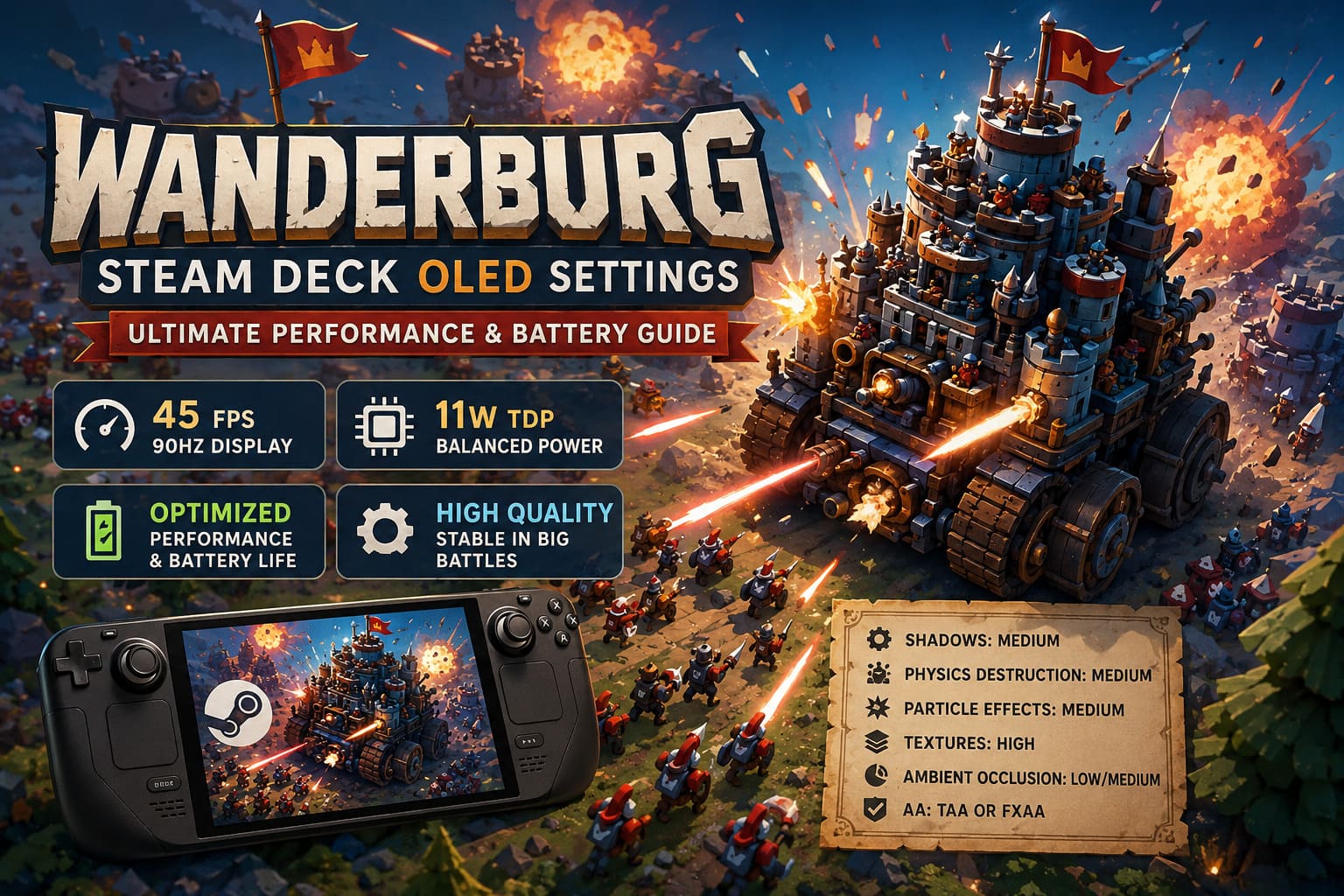
My Recommended Wanderburg Steam Deck OLED Settings
For most players, I would start with a 45 FPS / 90Hz configuration. It hits a sweet spot between responsiveness and power consumption, and the OLED model’s 90Hz display makes this combination particularly attractive.
| Setting | Recommended Value |
|---|---|
| SteamOS Frame Rate Limit | 45 FPS |
| Refresh Rate | 90Hz |
| TDP Limit | 11W |
| GPU Clock Limit | Disabled |
| Resolution | 1280×800 |
| Window Mode | Borderless Fullscreen |
| V-Sync | Off |
| Graphics Preset | Custom |
| Shadow Quality | Medium |
| Physics Destruction | Medium |
| Particle Effects | Medium |
| Texture Quality | High |
| Ambient Occlusion | Low/Medium |
| Anti-Aliasing | TAA or FXAA |
This configuration is not about squeezing out the highest possible benchmark number. It is about keeping Wanderburg pleasant to play when the battlefield gets completely out of hand.
Why 45 FPS Works So Well on the Steam Deck OLED
The Steam Deck OLED’s 90Hz display gives us an advantage that is easy to overlook. A 45 FPS limit divides perfectly into 90Hz, meaning the display can present each frame for two refresh cycles.
That makes 45 FPS feel considerably more consistent than an unstable 50–60 FPS target. You aren’t constantly bouncing between frame rates while the system struggles to keep up with the simulation.
And honestly, I would take a rock-solid 45 FPS over a wildly fluctuating 60 FPS in Wanderburg every single time. When your fortress becomes enormous and the game starts calculating destruction, enemy movement, weapon interactions, and physics simultaneously, consistency matters more than a number on the performance overlay.
SteamOS Performance Settings
Open the Steam Deck Quick Access Menu using the three-dot button, then head into the Performance section.
I recommend starting with:
- Frame Rate Limit: 45 FPS
- Refresh Rate: 90Hz
- TDP Limit: 11W
- GPU Clock Frequency: Disabled
- Scaling Filter: Linear
- FSR: Optional
The 11W TDP target is particularly interesting. Wanderburg doesn’t always need the full power envelope of the Deck, especially during quieter sections. Giving the CPU and GPU a reasonable ceiling can reduce unnecessary power consumption without destroying performance.
I would leave the GPU clock limit alone. Wanderburg can become surprisingly CPU-heavy, particularly when there is a ridiculous amount of destruction happening at once. Manually forcing a GPU frequency can potentially interfere with the Deck’s ability to distribute its limited power where it is actually needed.
Best In-Game Graphics Settings
Once the SteamOS limits are configured, head into Wanderburg’s graphics menu.
Resolution and Display
Set the resolution to 1280×800. There is little reason to sacrifice image clarity by running below the Steam Deck’s native resolution unless you’re specifically trying to reduce power consumption.
Use Borderless Fullscreen if it behaves properly on your setup. I also recommend disabling in-game V-Sync when using the SteamOS frame-rate limiter.
For anti-aliasing, both TAA and FXAA have their advantages. TAA produces cleaner edges and reduces shimmering, while FXAA can give the image a slightly sharper appearance. On the relatively small OLED screen, I personally lean toward FXAA if the softness of TAA starts bothering you.
Don’t Lower Texture Quality First
This is one of those settings decisions that I think handheld players sometimes get backwards.
Wanderburg’s textures can remain surprisingly attractive on the Steam Deck OLED, and dropping them aggressively doesn’t necessarily solve the performance problems that appear during huge battles. If texture memory isn’t the limiting factor, sacrificing texture quality for a few settings that have much greater performance impact makes little sense.
Keep Texture Quality on High.
The OLED display does a great job showing off Wanderburg’s mechanical structures, wooden surfaces, colorful effects, and darker environments. High textures help preserve that detail without being the first thing you need to compromise.
Shadows: Medium Is the Sweet Spot
Shadow Quality: Medium is where I would leave it.
High-quality shadows can cost considerably more than you might expect, especially in scenes containing lots of moving objects and structures. On a seven-inch display, the difference between Medium and High is also much less dramatic than it looks when you’re staring at screenshots on a desktop monitor.
Medium gives Wanderburg enough visual depth without wasting precious GPU resources.
If you’re struggling to maintain your target frame rate, shadows are one of the first settings I would reduce.
Physics Destruction Is the Real Performance Lever
This is arguably the most important setting in the entire guide.
Wanderburg’s appeal comes from watching your mobile fortress smash through the world. Buildings collapse, structures break apart, enemies scatter, and your ridiculous collection of weapons turns the battlefield into a mechanical disaster zone.
That’s also exactly where the game can become expensive to simulate.
Set Physics Destruction Detail to Medium.
You are still getting the destruction that makes Wanderburg fun, but you’re avoiding some of the extra simulation overhead that can pile up during the most chaotic encounters.
If you have ever watched your fortress plow through a structure and then noticed the frame rate suddenly stumble while dozens of objects are flying around, this is the sort of setting worth adjusting.
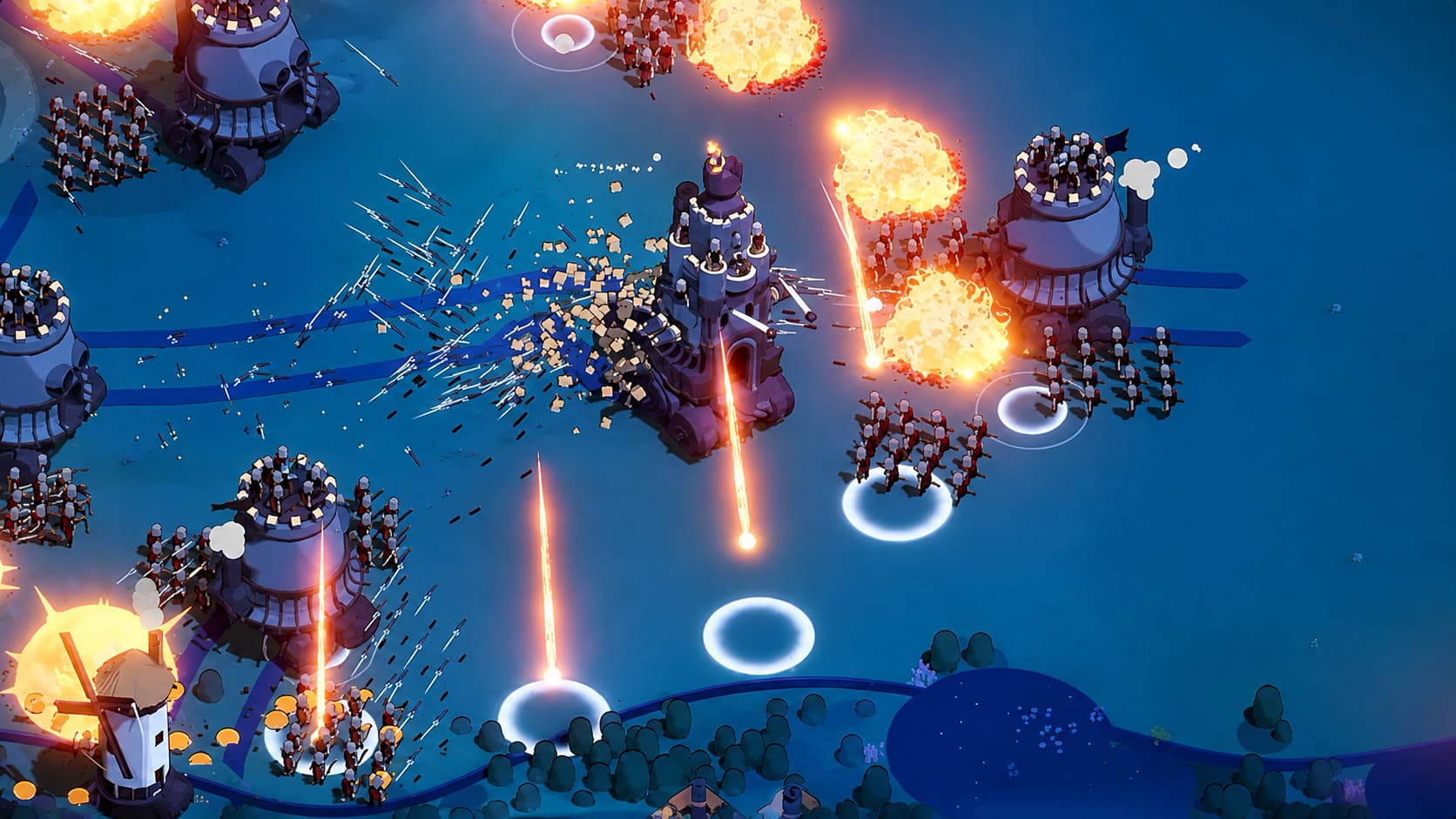
Particle Effects: Medium
I would also use Medium Particle Effects.
There is nothing wrong with making Wanderburg look flashy. In fact, the colorful projectiles and magical effects are a big part of the game’s personality. The problem starts when multiple weapons are firing simultaneously while destruction effects and enemy units are covering the screen.
Medium keeps the visual spectacle intact while reducing the chance of a giant particle-heavy battle turning into a slideshow.
I would rather have slightly fewer sparks and perfectly readable gameplay than an impressive explosion followed by a nasty frame-time spike.
Ambient Occlusion and Post-Processing
Set Ambient Occlusion to Low or Medium.
This is another area where the visual difference can be surprisingly subtle on the Steam Deck OLED. You get more from maintaining stable frame delivery than squeezing every possible shadowing effect out of the engine.
If you’re chasing maximum battery life, choose Low. If performance is already stable and you want a little more depth in the environment, Medium is perfectly reasonable.
The 30 FPS Battery-Saver Setup
Sometimes you’re not sitting beside a charger. Maybe you’re on a train, sitting in an airport, or trying to survive a long flight with nothing but your Steam Deck and questionable snack choices.
That’s where the 30 FPS profile becomes useful.
| Setting | Battery Profile |
|---|---|
| Frame Rate | 30 FPS |
| Refresh Rate | 90Hz |
| TDP | 8–9W |
| Shadows | Low |
| Physics | Medium |
| Particles | Low/Medium |
| Textures | High |
| Brightness | Around 50% |
The 30 FPS cap obviously doesn’t feel as responsive as 45 FPS, but Wanderburg is not a competitive shooter where every millisecond determines whether you win or lose.
For a strategy-heavy action game where you’re controlling a gigantic moving fortress, 30 FPS is perfectly playable, particularly when the alternative is running out of battery halfway through a long session.
The OLED screen also helps here. Because black pixels consume essentially no power on an OLED panel, keeping brightness under control can contribute to longer sessions without making the game look dull.
What About 60 FPS?
Yes, you can absolutely target 60 FPS if you prefer maximum smoothness and don’t mind increased power consumption.
I wouldn’t make it my default, though.
The problem is not necessarily keeping 60 FPS during the opening section. The real question is what happens when your fortress has grown, the map is packed with enemies, and half the environment is collapsing around you.
A 60 FPS target leaves significantly less performance headroom. You may end up with a game that feels fantastic for ten minutes and then starts throwing noticeable frame-time spikes at you later.
45 FPS is the safer enthusiast setting.
Fixing Wanderburg Steam Deck Crashes and Freezes
Performance isn’t the only thing that can cause headaches. If Wanderburg refuses to launch, freezes during startup, or crashes unexpectedly, there are several basic SteamOS troubleshooting steps worth trying.
Try Proton Experimental
Open Wanderburg’s Steam properties and go to Compatibility. Enable the option to force a specific compatibility tool, then test Proton Experimental.
If you’re already using it and experiencing problems, testing another compatible Proton version can also be worthwhile. Proton behavior can vary between games and updates, so don’t assume the newest option will automatically be the best one.
Verify the Game Files
If crashes suddenly begin after an update or the game starts freezing in situations that previously worked normally, verify the installation through Steam.
Corrupted or incomplete files aren’t always obvious, and verification is an easy first step before doing anything more drastic.
Test With the Steam Overlay Disabled
If crashes appear specifically during heavy gameplay, temporarily disable the Steam Overlay and test again.
I wouldn’t claim this is a guaranteed Wanderburg fix, but overlays can occasionally contribute to instability or additional memory pressure. It’s a quick troubleshooting step that costs almost nothing to try.
My Final Steam Deck OLED Profile
After looking at Wanderburg from the perspective of someone who cares more about consistent gameplay than benchmark bragging rights, this is the profile I’d actually use:
45 FPS / 90Hz / 11W TDP / High Textures / Medium Shadows / Medium Physics / Medium Particles.
That combination preserves what makes the game visually appealing while targeting the areas most likely to hurt performance when the action gets crazy.
If you’re travelling, switch to 30 FPS and 8–9W. If you’re plugged in and want the smoothest possible presentation, experiment with 60 FPS. There is no single magic configuration for every player, but 45 FPS is the setting I think makes the most sense for everyday Steam Deck OLED gaming.
Wanderburg is at its best when you stop thinking about the hardware and simply get lost in the chaos of building an absurd fortress on wheels. The Steam Deck OLED is more than capable of delivering that experience, provided you don’t force the little machine to waste power rendering effects you barely notice.
Keep the textures high, cut the expensive simulation settings, give the CPU enough breathing room, and let the 90Hz OLED panel do the rest. That’s the setup I’d recommend before starting another run and inevitably deciding that my fortress needs just one more weapon.