Fell & Sell Save File Location: PC, Steam Cloud & Backup Guide (2026)
Fell & Sell Save File Location: If you’ve already sunk hours into dangerous dungeon runs, stacked up valuable loot, redesigned your shop, unlocked blueprints, and poured your hard-earned gold into upgrades, the last thing you want is a corrupted save wiping all that work away. Fell & Sell mixes first-person hack-and-slash roguelike combat with surprisingly deep shop management, so losing a save can mean losing far more than a few minutes of progress.
I’ve always considered manual save backups one of those boring PC-gaming chores that becomes incredibly important the second something goes wrong. A crash, Windows reinstall, failed Steam Cloud synchronization, or damaged save slot can turn a great evening of dungeon crawling into a complete headache. The good news is that Fell & Sell stores its local PC saves in a predictable Windows directory, and there are several ways to protect those files before disaster strikes.
This guide covers the Fell & Sell save file location on Windows, the game’s Steam Cloud directory, ways to recover a damaged save using local backup files, and a simple batch script for creating your own backups. If you’re moving to another PC or trying to recover a broken run, this is the stuff you need.
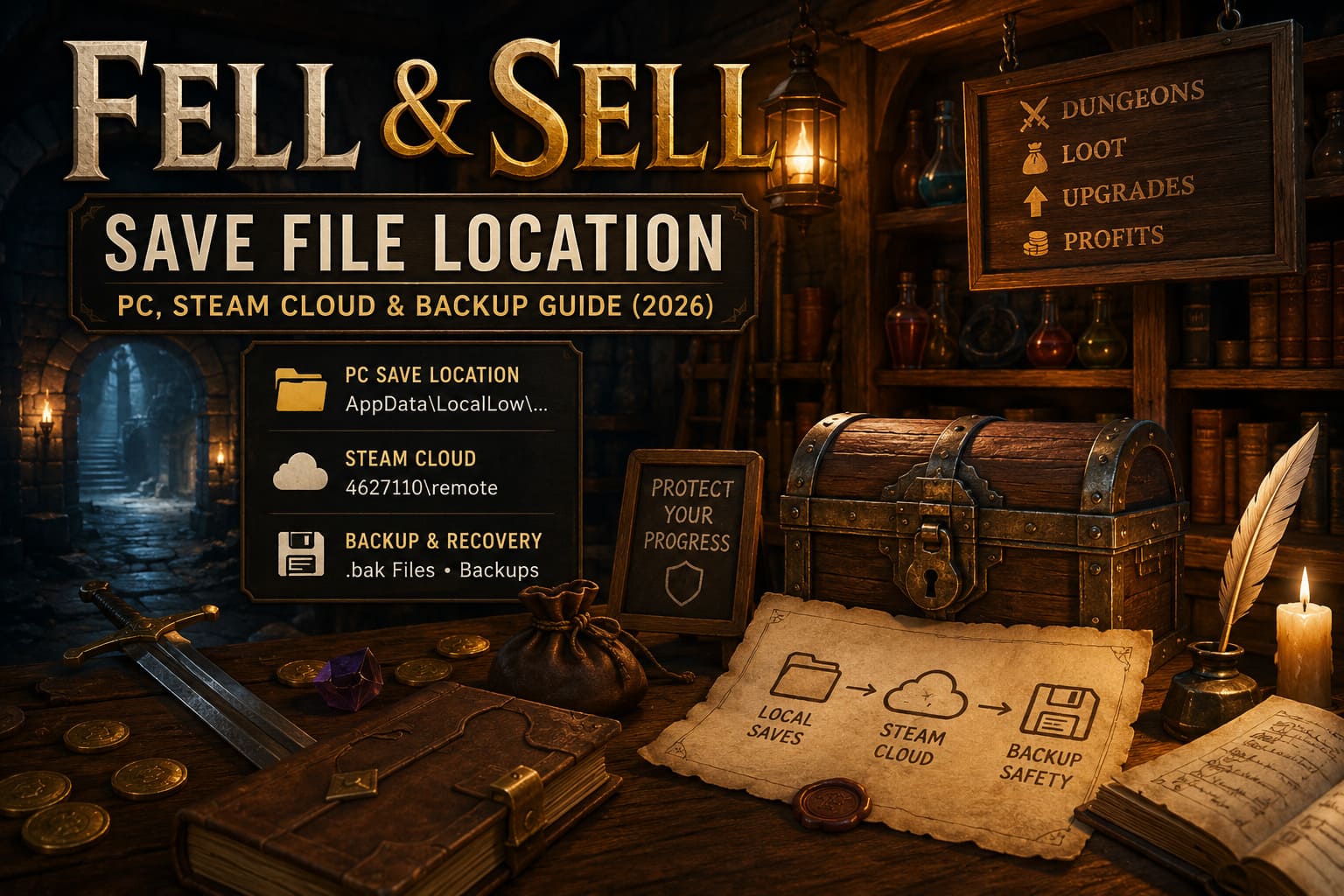
Fell & Sell Save File Location on PC
On Windows, Fell & Sell keeps its local save data inside the AppData\LocalLow directory. That’s a familiar location for games built with Unity, and it’s also one of those folders Windows likes to hide from casual users.
The main save directory is:
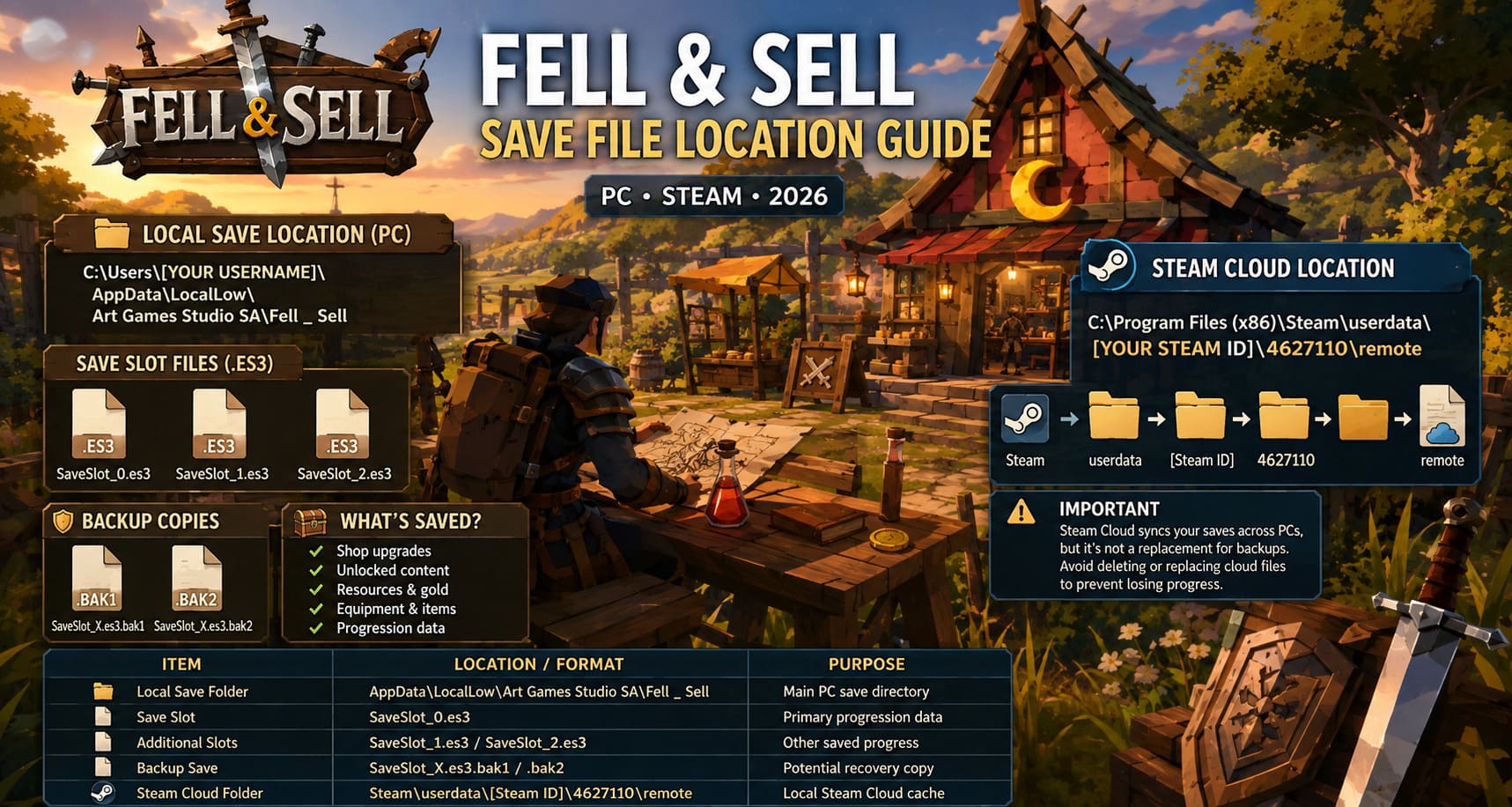
C:\Users\[YOUR USERNAME]\AppData\LocalLow\Art Games Studio SA\Fell _ Sell
Don’t feel like digging through hidden folders? There’s a much faster way. Press Windows Key + R to open the Run window, then enter:
%USERPROFILE%\AppData\LocalLow\Art Games Studio SA\Fell _ Sell
Hit Enter and Windows should take you straight to the game’s save directory. This is easily the method I’d recommend because it avoids clicking through a pile of Windows folders just to reach AppData.
If you prefer browsing manually and the AppData folder isn’t visible, open File Explorer and enable Hidden items under the View menu. AppData is hidden by default, so nothing is wrong with your installation if you can’t immediately see it.
What Files Are Stored There?
The save data uses the .es3 extension, associated with Easy Save 3, a storage system commonly used by Unity games. Your Fell & Sell installation may contain save slots with names such as:
- SaveSlot_0.es3
- SaveSlot_1.es3
- SaveSlot_2.es3
These files can contain important progression information, including shop development, unlocked content, resources, equipment-related data, gold, and other persistent game-state information. That’s why you should never casually delete every file in this folder when troubleshooting.
| Item | Typical Location / Format | Purpose |
|---|---|---|
| Local Save Folder | AppData\LocalLow\Art Games Studio SA\Fell _ Sell | Main PC save directory |
| Save Slot | SaveSlot_0.es3 | Primary progression data |
| Additional Slots | SaveSlot_1.es3 / SaveSlot_2.es3 | Other saved progress |
| Backup Save | SaveSlot_X.es3.bak1 / .bak2 | Potential recovery copy |
| Steam Cloud Folder | Steam\userdata\[Steam ID]\4627110\remote | Local Steam Cloud cache |
Fell & Sell Steam Cloud Save Location
Local saves are only half the story if you’re playing through Steam. Steam Cloud synchronization can keep your progression available when switching between compatible computers, but it’s important to understand that Steam Cloud isn’t a magical replacement for personal backups.
The local Steam Cloud directory follows the standard Steam userdata structure:
C:\Program Files (x86)\Steam\userdata\[YOUR STEAM ID]\4627110\remote
The important number here is 4627110, which is the Steam AppID associated with Fell & Sell. The folder immediately before it is your personal Steam account ID. If several Steam accounts have been used on the same Windows installation, you’ll see multiple numbered folders inside userdata.
In other words, the structure looks roughly like this:
Steam → userdata → Your Steam ID → 4627110 → remote
That’s the place to look if you’re investigating locally cached Steam Cloud files. But there’s an important rule here: don’t start deleting or replacing cloud files blindly. Steam can detect differences between local and cloud data, and choosing the wrong version during a synchronization conflict can potentially leave you with an older save.
How to Access Your Steam Cloud Files
If you’re trying to recover a previous version, you can also use Steam’s browser-based cloud management interface. Log into your Steam account and open the Steam Cloud page associated with your account. From there, you can locate Fell & Sell and inspect synchronized files when the game exposes them through the service.
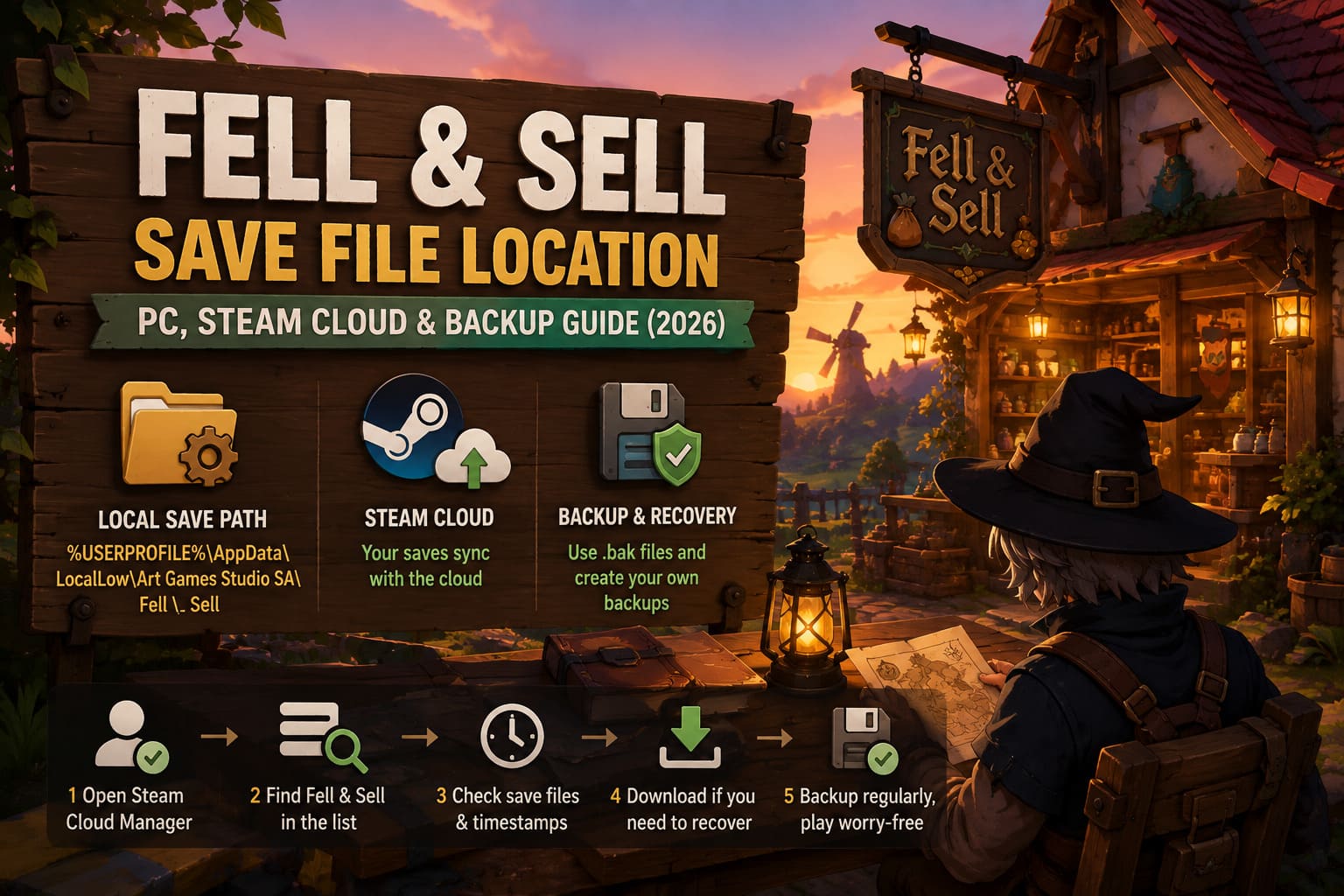
The basic process is straightforward:
- Sign in to your Steam account in a web browser.
- Open the Steam Cloud file management page.
- Find Fell & Sell in the list of supported games.
- Check the available synchronized save files and their timestamps.
- Download an appropriate file if you need a separate copy for recovery.
Pay close attention to the date and time attached to each save. If your local game suddenly rolled backward, the newest cloud file isn’t automatically the best choice. Sometimes the cloud version is the damaged or outdated one, depending on what happened during synchronization.
Recovering a Broken Fell & Sell Save
This is the part nobody wants to need, but it’s incredibly useful when a save slot starts acting weird. If Fell & Sell crashes and your progression looks corrupted afterward, don’t immediately reinstall the game. Reinstalling the executable doesn’t necessarily repair a damaged save.
First, completely close Fell & Sell. I’d also exit Steam while you’re working on the files. The goal is to prevent Steam from immediately synchronizing a problematic local state while you’re attempting recovery.
Next, open:
%USERPROFILE%\AppData\LocalLow\Art Games Studio SA\Fell _ Sell
Before touching anything, make your own emergency copy. Create a folder somewhere safe, such as your Desktop, and call it Fell Sell Emergency Backup. Copy the entire contents of the Fell & Sell save directory into it.
That one step is incredibly important. If your first recovery attempt fails, you can put everything back exactly as it was before you started experimenting.
Using .bak Save Files
Look through the folder for backup versions of your save. Depending on the game’s current save state, you may see files resembling:
- SaveSlot_0.es3.bak1
- SaveSlot_0.es3.bak2
If SaveSlot_0.es3 appears to be the damaged slot, don’t immediately destroy it. Rename it first to something such as SaveSlot_0.es3.broken. This preserves the original file while removing it from the game’s normal save filename.
Now take the backup you want to test. For example, rename:
SaveSlot_0.es3.bak1
to:
SaveSlot_0.es3
Launch Steam and start Fell & Sell. Check the affected save slot and see whether your shop, inventory, resources, and progression have returned to an earlier working state.
Don’t overwrite every save slot at once. Recover one slot, test it, and only then consider making additional changes. That’s the safest approach when dealing with potentially corrupted files.
Make Your Own Fell & Sell Backup System
Steam Cloud is useful, but I still recommend keeping a separate local backup if your Fell & Sell playthrough has become a serious time investment. A personal copy gives you another safety net if cloud synchronization goes sideways or you accidentally overwrite the wrong version.
Windows can handle this with a basic batch file. Create a new text document on your Desktop and paste the following commands into it:
@echo off
set “source=%USERPROFILE%\AppData\LocalLow\Art Games Studio SA\Fell _ Sell”
set “destination=%USERPROFILE%\Documents\Fell_Sell_Backups\%date%”
xcopy “%source%” “%destination%” /E /I /Y
echo Fell & Sell Save Files Successfully Backed Up!
pause
Save the document as Backup_Fell_Sell.bat. When using Save As, change Save as type to All Files (*.*) so Windows doesn’t secretly turn it into a .txt file.
Once it’s saved, double-clicking the batch file will copy the Fell & Sell save directory into a dated folder inside:
%USERPROFILE%\Documents\Fell_Sell_Backups
It’s a simple solution, but honestly, that’s what I like about it. No extra backup software. No complicated setup. One click and you’ve got another copy of your progression.
Fell & Sell Dungeon Guide: How to Beat Monsters and Survive Deep Runs
Important Backup Tips Before You Experiment
Save recovery is one of those situations where being impatient can make everything worse. Before changing anything, keep these rules in mind:
- Close the game before modifying saves.
- Exit Steam if you’re worried about an unwanted synchronization.
- Copy the entire save folder before replacing individual files.
- Keep the original corrupted save instead of permanently deleting it.
- Check file timestamps when choosing between multiple backups.
- Test one recovered slot before changing anything else.
Fell & Sell Shopkeeper Guide: Full Crafting Recipes List & Market Pricing Strategy
Fell & Sell Save Location: Final Thoughts
Fell & Sell is exactly the kind of game where a good save backup matters. You’re not just grinding through another disposable run. You’re building a shop, collecting valuable loot, unlocking blueprints, improving your setup, and gradually creating a more efficient operation while surviving increasingly dangerous dungeon expeditions. Losing that progress because of one bad crash would be brutal.
The good news is that finding the Fell & Sell save file location on PC isn’t difficult once you know where to look. Your main local saves are stored under AppData\LocalLow\Art Games Studio SA\Fell _ Sell, while Steam keeps its synchronized local data under the game’s AppID directory inside Steam\userdata.
If something breaks, don’t panic and don’t start deleting folders randomly. Make a full copy first, inspect the available .es3 and .bak files, then work methodically through the recovery process. And if you’ve already invested dozens of hours into your shop, that little backup batch file is absolutely worth setting up.
Because in a game built around loot, risk, and profit, losing your entire save to a dumb file problem is one risk you don’t need to take.