Aion 2 Micro Stuttering Fix Guide: How to Smooth Out Open-World Frame Drops and Lag in 2026
Aion 2 can look absolutely ridiculous when everything is running properly. The open world is huge, aerial movement is fast, battles can throw a ridiculous number of effects onto the screen, and Unreal Engine 5 is doing a lot of heavy lifting behind the scenes. The problem is that all this visual ambition can make frame pacing feel much worse than the FPS counter suggests.
That is the annoying part.
You can be sitting at 90, 100, or even 120 FPS and still feel the game hitch every few seconds. The camera movement suddenly feels sticky, gliding across the world produces tiny pauses, and entering a crowded city can make the whole game feel like it is dropping frames even when the average FPS barely moves.
I would take a stable 75 FPS with clean frame delivery over a supposedly impressive 120 FPS graph covered in frame-time spikes any day.
The good news is that Aion 2’s micro-stuttering can usually be attacked from several different angles. Shader compilation, DirectX 12 caching, frame-limit conflicts, storage performance, Windows settings, overlays, and even network behavior can all contribute.
Here is the setup I would work through before blaming the game or replacing hardware.
Why Aion 2 Can Stutter Even at High FPS
First, forget the idea that your average FPS number tells the entire story.

Frame pacing matters just as much as average FPS.
If one frame takes 8 ms to render and the next suddenly takes 35 ms, you will feel that hitch even if your FPS counter eventually reports a perfectly healthy average.
Aion 2 has several workloads that can trigger these spikes:
- UE5 shader compilation when new effects or assets appear.
- DirectX 12 shader cache problems after updates or driver changes.
- Open-world asset streaming while moving rapidly through the map.
- CPU spikes during crowded events and faction battles.
- GPU frame-generation or upscaling conflicts.
- Background overlays fighting with the rendering pipeline.
- Network instability that feels like a graphical hitch.
That means there isn’t one magical “stutter fix” button. You want to identify which part of the PC is actually causing the problem.
1. Clean Up the DirectX 12 Shader Cache
Shader compilation is one of the first things I would investigate after a fresh installation or major Aion 2 update.
UE5 games can compile shaders when you encounter new environments, effects, characters, or abilities. The result can be a tiny freeze right as something appears on screen.
It is especially noticeable when flying quickly through a previously unexplored area.

Reset the Windows Shader Cache
Close Aion 2 and your launcher first.
Then:
- Open Windows Settings and search for Storage Settings.
- Select Temporary Files.
- Allow Windows to finish scanning.
- Select DirectX Shader Cache.
- Remove the cache while leaving unrelated temporary files alone.
- Restart Windows before launching Aion 2 again.
If you use an NVIDIA GPU, also check the shader cache configuration in the NVIDIA App or NVIDIA Control Panel. A larger cache allocation can give frequently played UE5 titles more room to retain compiled shader data.
A 10 GB cache is a reasonable starting point, while Unlimited can also be tested if you have plenty of storage.
AMD users can perform a shader cache reset through AMD Software: Adrenalin Edition.
Don’t expect this to magically double your FPS. That’s not what it is for. The goal is to reduce those ugly little frame-time explosions caused by repeated shader work.
2. Give Aion 2 Time to Settle After Updates
This sounds almost too simple, but it is worth testing.
After a major patch, I wouldn’t immediately judge Aion 2 by the first five minutes of gameplay.
Log into a major city or another busy area and let the game sit for 5–10 minutes. Move around normally, rotate the camera, open menus, and allow assets and shaders to populate their caches.
The first trip through an area can be rougher than the second.
If the game becomes noticeably smoother after this warm-up period, shader and asset preparation are probably contributing to your stutter.
3. Stop Fighting Your Monitor’s Refresh Rate
One of the easiest ways to create messy frame pacing is to have multiple systems trying to control the frame rate at the same time.
For example:
In-game FPS cap + NVIDIA frame cap + V-Sync + G-Sync
That’s a lot of cooks in one kitchen.
I prefer giving one system clear control over frame delivery.
For a G-Sync or FreeSync setup, a practical configuration is:
| Setting | Recommended Starting Point |
|---|---|
| In-Game FPS Limiter | Off |
| NVIDIA Max Frame Rate | Refresh Rate – 3 FPS |
| V-Sync | Driver On / Game Off |
| G-Sync / FreeSync | On |
| Frame Generation | Test Separately |
| Resolution Scaling | DLSS/TSR According to GPU |
For a 144 Hz monitor, for example, a 141 FPS cap is a common starting point.
For 165 Hz, try around 162 FPS.
The exact number isn’t sacred. The important thing is avoiding situations where several frame-pacing systems are constantly correcting each other.
What About Frame Generation?
Frame Generation is another setting I would test independently.
If Aion 2 feels worse with Frame Generation enabled, don’t automatically assume your GPU is too weak. Compare the game with it disabled and pay attention to frame-time consistency and input feel, not just the FPS counter.
A higher displayed FPS number isn’t automatically a smoother game.
4. Test Fullscreen and Borderless Separately
Windows 11 has changed how fullscreen applications behave, and different hardware configurations can react differently.
Start with the mode that gives you the cleanest frame delivery rather than blindly assuming one is universally superior.
Try:
- Exclusive Fullscreen
- Borderless Windowed
If one mode produces mouse hitches, alt-tab problems, or inconsistent frame pacing, switch to the other.
You can also test Windows’ fullscreen optimization behavior.
Find the Aion 2 executable, right-click it, select Properties, then open the Compatibility tab.
From there, test:
Disable Fullscreen Optimizations
You can also open Change High DPI Settings and test application-level DPI scaling if Windows scaling appears to be interfering with the game.
Don’t change ten Windows compatibility options at once. Test one configuration, play for a while, and compare.
5. Put Aion 2 on a Fast SSD
This one matters more for a giant open-world game than many people realize.
Aion 2 is constantly pulling data while you move around. Textures, character models, environmental assets, audio, effects, and other data have to arrive quickly enough to keep the world moving.
An old mechanical HDD is asking for trouble.
I would install Aion 2 on an internal NVMe SSD, preferably PCIe Gen 3 or Gen 4, rather than an HDD or slow external drive.
Also check your free space.
Try to keep roughly 15–20% of the SSD capacity available. A drive that is almost completely full has less breathing room for normal storage operations, updates, caching, and other workloads.
If your game is installed on an ancient SATA SSD, moving it to a modern NVMe drive is a much more meaningful experiment than randomly changing obscure Windows registry settings.
6. Check Windows Virtual Memory Instead of Ignoring It
Massive MMORPG battles can put serious pressure on system memory and VRAM.
When physical memory becomes constrained, Windows relies on virtual memory stored on your drive.
The pagefile should not be treated as a secret FPS booster. It is primarily a safety net when memory demand gets high.
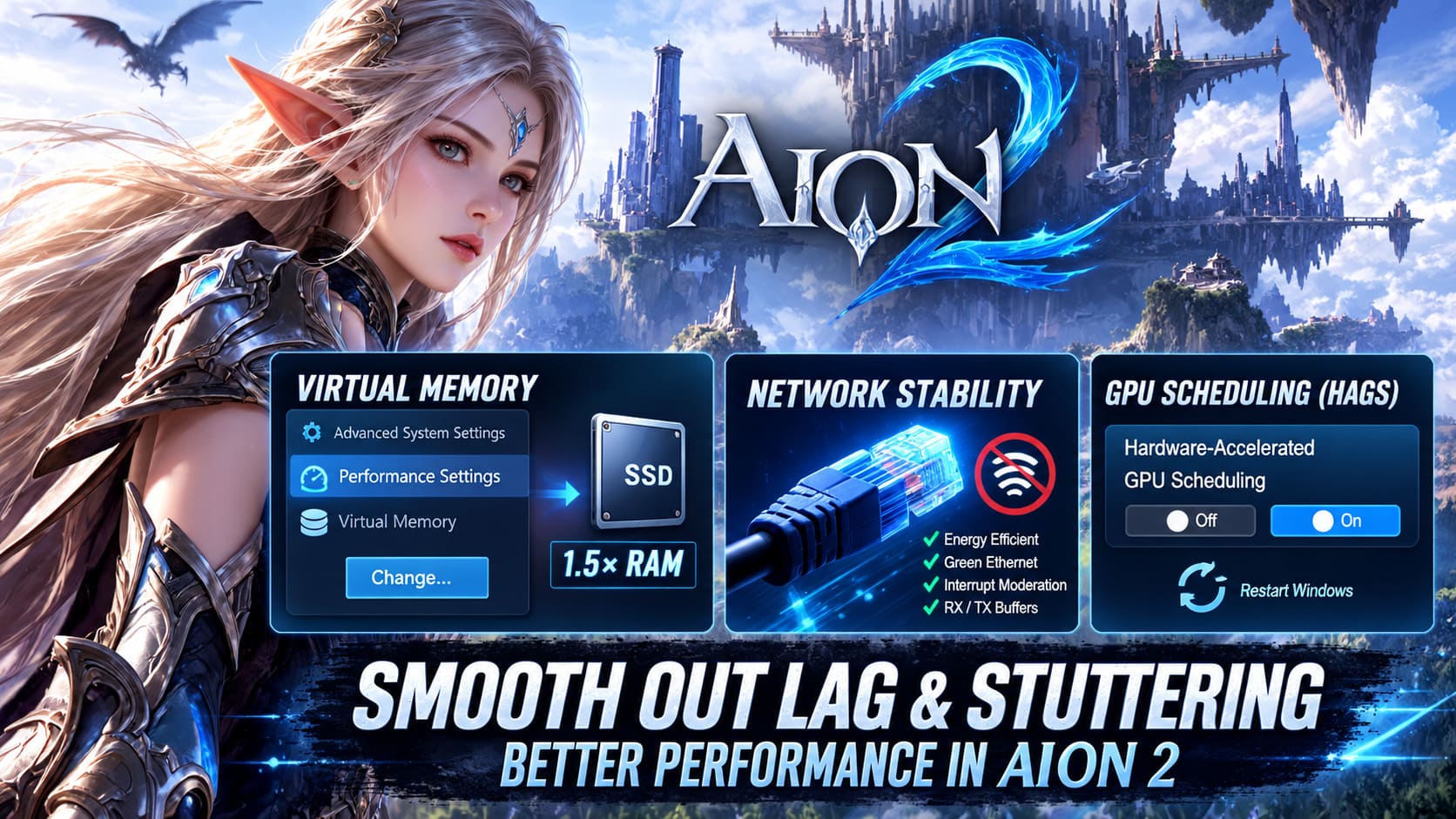
To configure it manually:
- Search Windows for Advanced System Settings.
- Open Performance Settings.
- Select the Advanced tab.
- Choose Virtual Memory → Change.
- Select your fastest SSD.
- Set a custom pagefile size if you specifically want manual control.
- Restart Windows.
A common example is 1.5× installed RAM for both initial and maximum size. With 16 GB of RAM, that would be 24,576 MB.
Still, automatic Windows management is perfectly reasonable for many systems. If you do not have a specific memory-management problem, there is no need to treat manual pagefile configuration as mandatory.
7. Don’t Ignore Network-Related Hitching
This is where things get confusing.
Not every “stutter” is a rendering stutter.
If players teleport slightly, movement snaps backward, abilities appear delayed, or the world seems to pause while other players update, you may be dealing with network instability rather than GPU frame pacing.
Ethernet is my first test.
If possible, connect the PC directly to the router and compare the experience with Wi-Fi.
For wired Ethernet adapters, you can also inspect advanced adapter settings through Device Manager.
Look for options such as:
- Energy Efficient Ethernet
- Green Ethernet
- Interrupt Moderation
- Receive Buffers
- Transmit Buffers
Some systems behave better with power-saving Ethernet features disabled. Buffer settings can also be tested if you are experiencing packet-heavy situations.
Don’t blindly max every network setting because someone posted a magic configuration online. Hardware and drivers differ. Change one setting, test, and keep the configuration that actually improves stability.
8. Test Hardware-Accelerated GPU Scheduling
Windows Hardware-Accelerated GPU Scheduling (HAGS) is another setting where there isn’t one universal answer.
On one PC it can improve frame delivery.
On another, a particular driver version can make things worse.
Open:
Settings → System → Display → Graphics → Change Default Graphics Settings
Find Hardware-Accelerated GPU Scheduling.
If it is enabled, test Aion 2 with it disabled.
If it is already disabled, test it enabled.
Restart Windows after changing the option.
The important part is the testing process. Don’t copy a random recommendation claiming that HAGS must always be ON for modern GPUs or always OFF for older cards. Driver behavior changes, and Aion 2 itself will continue receiving patches.
9. Kill the Overlay Stack
This is one of my favorite troubleshooting steps because it costs almost nothing.
Overlays can hook into the game while also consuming CPU, GPU, memory, or capture resources.
For testing, disable:
- Discord Game Overlay
- Steam Overlay
- NVIDIA recording/overlay features
- AMD recording overlays
- Overwolf
- Other FPS monitoring or capture applications
Then launch Aion 2 with as little background software as possible.
If the stutter disappears, re-enable your applications one at a time.
That’s much better than leaving everything disabled forever without knowing what caused the problem.
How to Fix Aion 2 Low Memory Crashes: Complete Unreal Engine 5 Troubleshooting Guide (2026)
Aion 2 Micro Stuttering Troubleshooting Order
If I were setting up a new PC specifically for Aion 2, I wouldn’t start by changing twenty advanced options.
I’d work through the problem in this order:
| Priority | What To Test | Why |
|---|---|---|
| 1 | Shader Cache Reset | Removes potentially corrupted/old cache data |
| 2 | FPS Cap + VRR Setup | Cleans up frame pacing conflicts |
| 3 | NVMe Installation | Improves open-world asset streaming |
| 4 | Overlay Shutdown | Removes third-party rendering hooks |
| 5 | HAGS Toggle | Tests Windows GPU scheduling behavior |
| 6 | Wired Ethernet | Separates network hitching from GPU stutter |
| 7 | Pagefile Check | Helps during high-memory workloads |
| 8 | Fullscreen Modes | Tests Windows presentation behavior |
This approach saves a ridiculous amount of time.
Final Aion 2 Smooth FPS Checklist
Before blaming Unreal Engine 5, your GPU, or the Aion 2 servers, run through this short checklist:
- Update your GPU driver and reboot afterward.
- Reset the DirectX shader cache after major driver or game updates.
- Avoid stacking multiple FPS limiters.
- Keep G-Sync or FreeSync configured consistently with your frame cap.
- Test Aion 2 with Frame Generation disabled if frame pacing feels strange.
- Install the game on an internal NVMe SSD.
- Keep reasonable free space on the game drive.
- Disable Discord, Steam, recording, and other overlays while troubleshooting.
- Test HAGS ON and OFF rather than assuming one setting is universally correct.
- Use Ethernet when possible.
- Give the game a few minutes after major updates or when entering a new area.
- Watch frame times, not just the average FPS number.
The biggest mistake is chasing a single magic setting.
Aion 2’s micro-stuttering can come from several different layers of the PC: the UE5 renderer, DirectX 12 shader work, storage streaming, Windows scheduling, overlays, frame synchronization, or the network. A change that helps one machine can do absolutely nothing on another.
For me, the goal isn’t seeing the biggest number possible in the FPS counter. A stable frame-time graph, consistent camera movement, and smooth traversal through a crowded zone are what actually make an MMORPG feel good.
Once those little hitches stop interrupting every glide across Atreia, Aion 2 suddenly feels much closer to the massive, fluid aerial MMO it is trying to be.