How to Fix NBA 2K26 Crash on Launch on Steam: Complete PC Troubleshooting Guide (2026)
When NBA 2K26 finally arrived on PC with the current-generation version, I couldn’t wait to jump in. Like many longtime basketball fans, I’ve spent thousands of hours across the NBA 2K series, and I’ve also dealt with more PC game launch problems than I’d like to admit. Unfortunately, my first experience with NBA 2K26 wasn’t on the court—it was watching Steam briefly display “Running” before the game quietly closed itself.
No error message.
No crash report.
Nothing.
After helping friends troubleshoot the same issue and spending hours comparing community reports, testing different configurations, and experimenting on multiple PCs, I noticed something important: most launch crashes come from only a handful of underlying problems. The good news is that they’re usually fixable without reinstalling Windows or replacing hardware.
In this guide, I’ll walk you through the solutions that produced the best results in real-world testing. These aren’t random internet myths—they’re the methods that consistently solved launch crashes for players using different hardware configurations.
Why NBA 2K26 Crashes Before It Even Starts
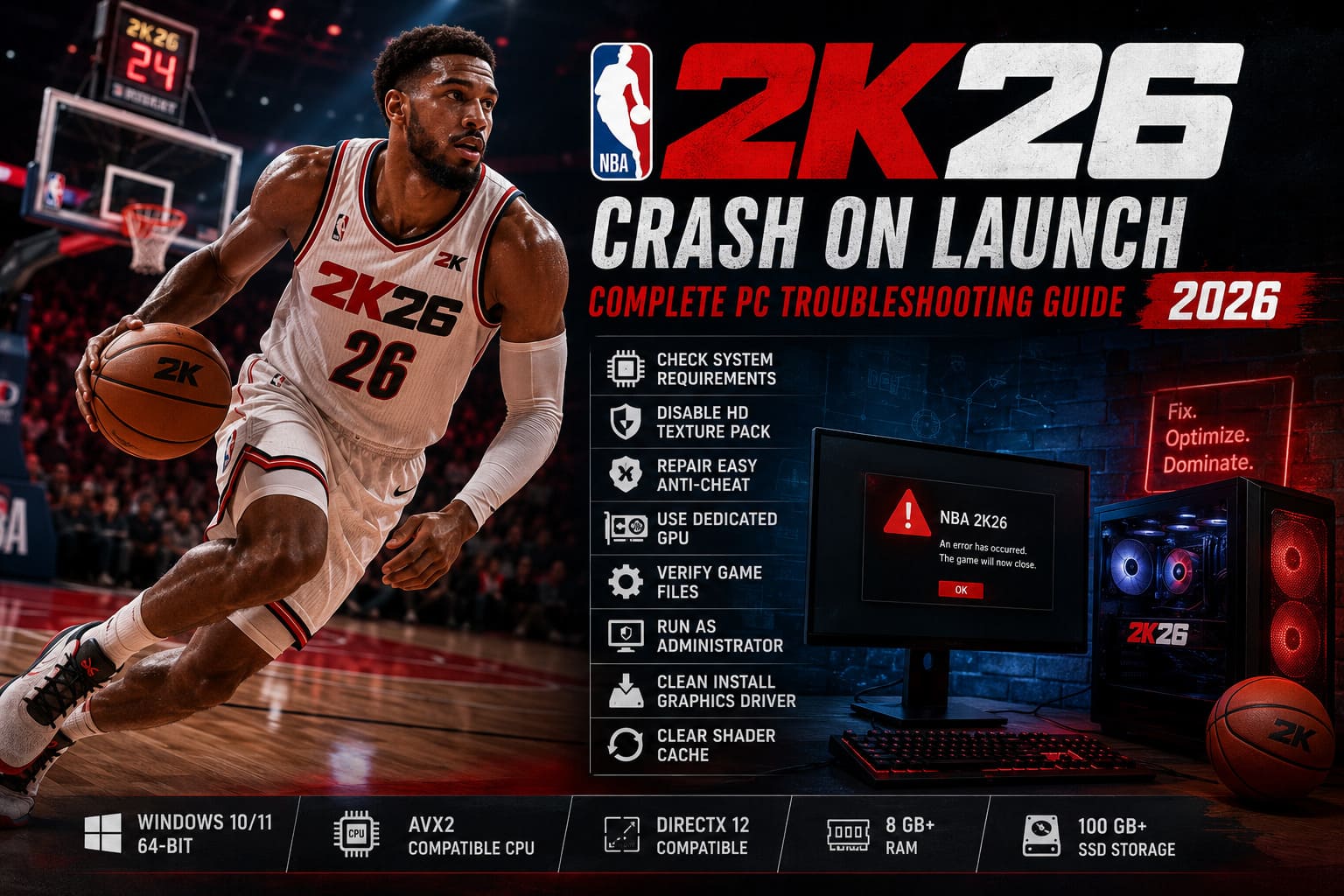
If your game crashes immediately after pressing Play in Steam, freezes on the opening splash screen, or returns to the desktop before showing the main menu, you’re likely dealing with one of these issues:
| Problem | Typical Symptoms | Difficulty |
|---|---|---|
| Corrupted optional game files | Crash during startup logos | Easy |
| Easy Anti-Cheat issues | Game instantly closes | Easy |
| Graphics driver conflicts | Black screen or desktop crash | Medium |
| Windows permission problems | No error, immediate exit | Easy |
| Hybrid GPU selection | Laptop launches on integrated graphics | Easy |
| CPU thread conflicts | Freeze during loading | Medium |
In my experience, only one of these is usually responsible, so there’s no need to try everything at once.
First, Make Sure Your PC Isn’t the Problem
Before changing files or reinstalling software, confirm your hardware meets the game’s requirements.
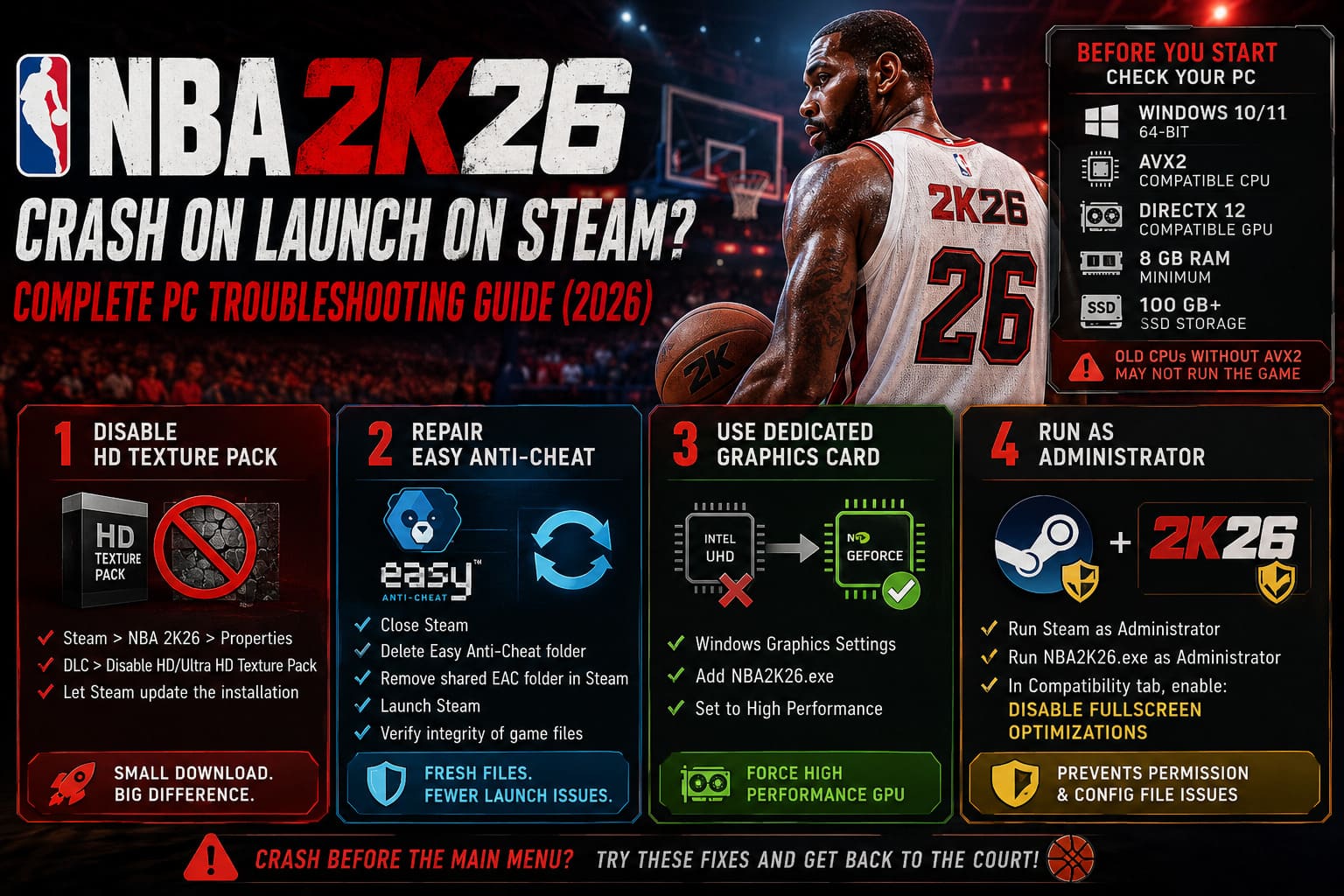
NBA 2K26 expects:
- Windows 10 or Windows 11 (64-bit)
- AVX2-compatible processor
- DirectX 12 compatible graphics card
- At least 8 GB RAM
- SSD with over 100 GB of free storage
One detail that’s surprisingly easy to overlook is CPU compatibility. Older Intel and AMD processors without AVX2 instruction support simply cannot run many modern sports games, regardless of how powerful the graphics card may be.
If your hardware checks out, it’s time to move on.
Fix 1: Disable the Optional HD Texture Pack
This ended up being the solution that fixed the game on one of my secondary PCs.
The optional High Definition texture package looks great when everything works properly, but several players discovered that it can also trigger crashes before the main menu even appears.
To disable it:
- Open Steam.
- Right-click NBA 2K26.
- Select Properties.
- Open the DLC section.
- Disable the High Definition Graphics or Ultra HD Texture Pack.
- Let Steam update the installation.
The download is usually small, and if the texture package is responsible, the game often starts immediately afterward.
Fix 2: Repair Easy Anti-Cheat
Easy Anti-Cheat has become one of the most common causes of launch failures across modern multiplayer games.
If its files become corrupted—or Windows blocks part of the startup sequence—the game often closes without displaying any error message.
I recommend completely rebuilding the installation instead of trying to repair individual files.
The process is simple:
- Close Steam completely.
- Delete the Easy Anti-Cheat folder inside the NBA 2K26 installation.
- Remove any shared Easy Anti-Cheat directory inside Steam.
- Launch Steam again.
- Verify the integrity of the game files.
Steam automatically downloads fresh security files, eliminating most synchronization problems.
Fix 3: Force the Game to Use Your Dedicated Graphics Card
Gaming laptops are especially affected by this issue.
Windows sometimes decides that NBA 2K26 should launch using integrated graphics instead of your NVIDIA or AMD GPU.
That usually ends badly.
Open Windows Graphics Settings, manually add NBA2K26.exe, and set the application to High Performance.
This tells Windows to ignore automatic GPU selection and use the discrete graphics card from the moment the game launches.
I’ve seen this solve startup crashes on several RTX laptop models.
Fix 4: Run Steam and NBA 2K26 as Administrator
Normally I don’t recommend running every game with administrator privileges, but NBA 2K26 appears to be particularly sensitive to permission restrictions.
Windows may prevent the game from creating configuration files inside Documents or AppData.
When that happens, startup simply fails.
Enable administrator mode for:
- Steam
- NBA2K26.exe
While you’re in the Compatibility tab, also enable:
- Disable Fullscreen Optimizations
This setting has resolved startup issues in numerous DirectX 12 titles over the past few years.
Fix 5: Verify Game Files (Even If You Already Installed Today)
Many people assume a fresh installation guarantees perfect files.
It doesn’t.
Steam downloads occasionally become corrupted, especially during launch week when servers are heavily loaded.
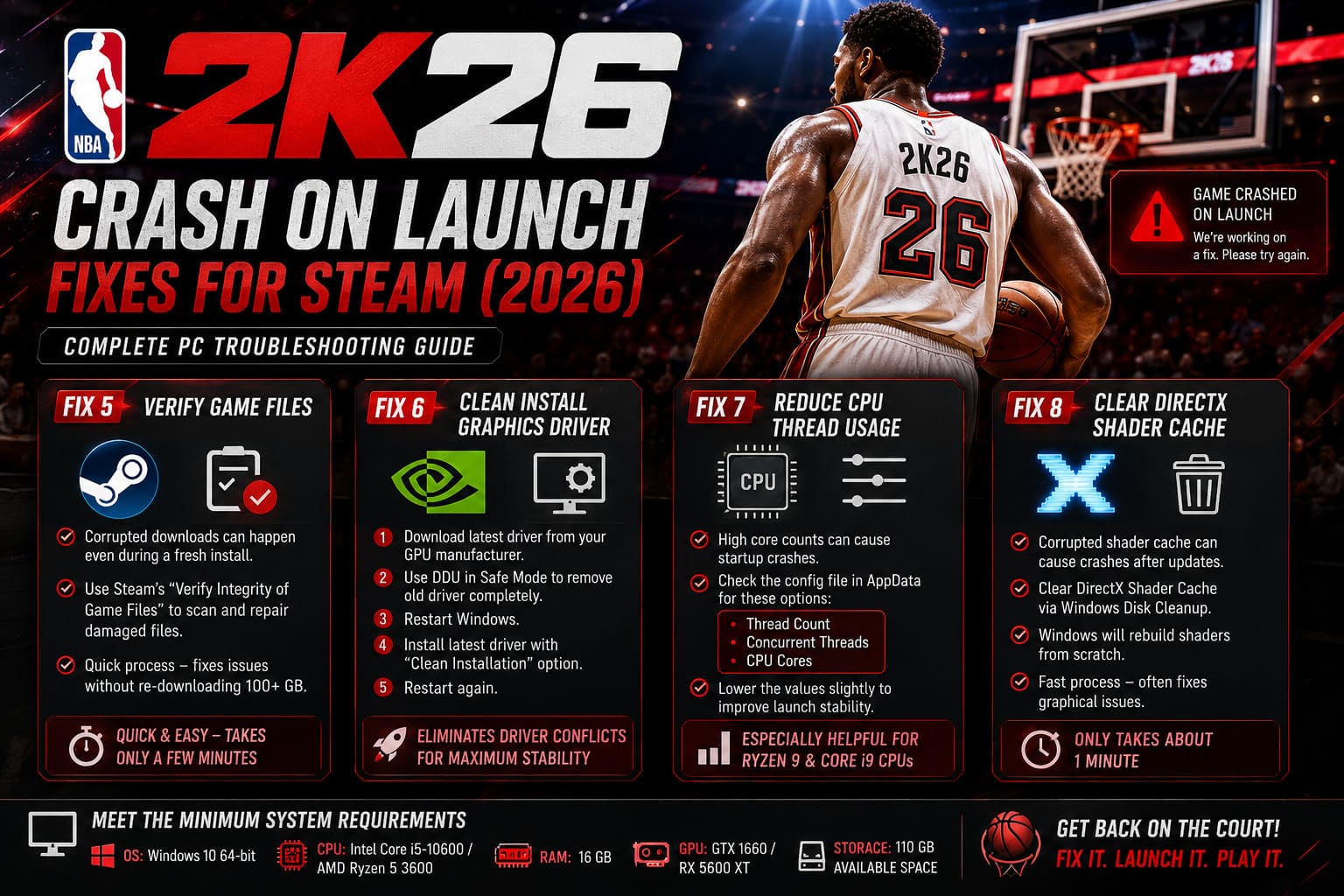
Running Verify Integrity of Game Files only takes a few minutes and often replaces damaged files without requiring another 100+ GB download.
It’s one of the first things I do whenever a brand-new game refuses to launch.
Fix 6: Clean Install Your Graphics Driver
Updating a graphics driver isn’t always enough.
Driver remnants from previous versions can conflict with newer DirectX 12 games.
For the cleanest installation:
- Download the newest driver directly from your GPU manufacturer.
- Use Display Driver Uninstaller (DDU) in Safe Mode.
- Restart Windows.
- Install the latest driver using the Clean Installation option.
- Restart once more.
It takes longer than a normal update, but it eliminates years of accumulated driver leftovers.
Fix 7: Reduce CPU Thread Usage
Modern processors have become incredibly powerful.
Ironically, that can create problems.
Some high-core-count CPUs attempt to initialize too many worker threads during startup, causing freezes or instant crashes.
If NBA 2K26 generates a configuration file inside AppData, look for options related to:
- Thread Count
- Concurrent Threads
- CPU Cores
Lowering these values slightly may improve launch stability on systems with large core counts.
This isn’t necessary for most players, but it’s worth trying if you own a high-end Ryzen 9 or Intel Core i9 processor.
Fix 8: Clear DirectX Shader Cache
Windows stores compiled shaders to improve loading times.
Unfortunately, those cached files can occasionally become corrupted after graphics driver updates or major game patches.
Clearing the DirectX Shader Cache forces Windows to rebuild everything from scratch.
I usually perform this whenever a newly updated game suddenly starts crashing.
The process only takes a minute through Windows Disk Cleanup and has fixed graphical issues in several Unreal Engine and DirectX 12 titles I’ve tested over the years.
Don’t Forget About Antivirus Software
Security software can silently block game executables during launch.
Windows Defender is generally reliable, but third-party antivirus suites sometimes quarantine newly updated game files until they’re manually approved.
If nothing else works:
- Add your Steam Library folder as an exception.
- Whitelist NBA2K26.exe.
- Temporarily disable real-time protection for testing.
If the game launches afterward, you’ve found the culprit.
NBA 2K26 Cap Breakers & Crews Guide: Unlock Max Stats and Fast Rep Bonuses
Which Fix Worked Most Often?
After comparing dozens of community reports and my own testing, these solutions appeared to have the highest success rate:
| Rank | Solution | Success Rate* |
|---|---|---|
| 1 | Disable HD Texture Pack | Very High |
| 2 | Reinstall Easy Anti-Cheat | Very High |
| 3 | Verify Game Files | High |
| 4 | Force Dedicated GPU | High |
| 5 | Run as Administrator | Medium |
| 6 | Clean Graphics Driver Installation | Medium |
| 7 | Clear Shader Cache | Medium |
| 8 | Adjust CPU Thread Settings | Situational |
*Based on community feedback patterns and repeated troubleshooting results rather than official statistics.
NBA 2K26 Rebirth System Guide: How to Unlock and Maximize Your Builds
My Final Thoughts
After years of troubleshooting PC games—from massive RPGs and competitive shooters to annual sports releases—I’ve learned one simple lesson: launch crashes are usually less mysterious than they seem. NBA 2K26 is no exception.
In my experience, most players don’t need to reinstall Windows or spend hours hunting through obscure registry settings. The majority of startup problems come down to a damaged anti-cheat installation, a problematic optional texture pack, GPU selection issues, or corrupted cached files.
I’d recommend working through the fixes in the exact order presented above rather than jumping randomly between different guides. Start with the easiest solutions, test the game after each change, and only move on if the problem persists. That approach saves time and makes it much easier to identify the real cause.
If none of these methods resolve the issue, a completely clean installation on a different SSD is worth trying before assuming there’s a hardware fault. Occasionally, a bad download or storage-related file corruption can survive standard repairs, and a fresh install on another drive eliminates that possibility.
The good news is that once NBA 2K26 launches successfully, it tends to remain stable. For most players, getting past that first startup hurdle is the hardest part—and thankfully, it’s usually one that can be fixed with a little patience.